
Dispatch
How Dispatch Works in Mizo
Overview
Mizo can automatically suggest or assign the best technician (and board in Connectwise)for each new ticket.
This page explains how Mizo decides who should handle a ticket, and how you can fine-tune the dispatch logic for your team.
Why Use Mizo’s Smart Dispatch
- Assign tickets
- Reduce response time and missed tickets
- Match tickets with the right skills
- Balance workload across your technicians
- Keep the same technician with recurring clients for better follow-up
How Mizo Decides Who Gets the Ticket
When a new ticket comes in, Mizo analyzes multiple factors to recommend (or directly assign) the best available technician.
| Factor | What It Means | Why It Matters |
|---|---|---|
| Ticket context | Mizo reads the ticket subject, description, and category to understand the type of issue. | Ensures complex or specialized issues go to the right expert. |
| Availability | Checks the technician’s working hours and time off (based on calendar or PSA data). | Prevents assigning tickets to someone who’s off or overloaded. |
| Skills & past experience | Looks at previous tickets handled successfully by each tech. | Favors the technician most familiar with similar issues. |
| Current workload | Evaluates how busy each technician is (active tickets, recent activity). | Keeps workloads balanced and avoids burnout. |
| Customer familiarity | Prioritizes technicians who have already worked with the same customer. | Improves customer satisfaction and continuity. |
Note: Mizo can suggest a technician or automatically assign one, depending on your workflow configuration.
How to Configure Dispatch Rules
Configuring dispatch in Mizo is simple, there’s no need to build complex rules or pick specific teams.
Once enabled in Mizo Dashboard (Link), Mizo automatically uses your connected PSA data to understand who can receive tickets and how to prioritize them.
Here’s what you can configure:
Enable dispatch for your technicians in Mizo Dasboard :
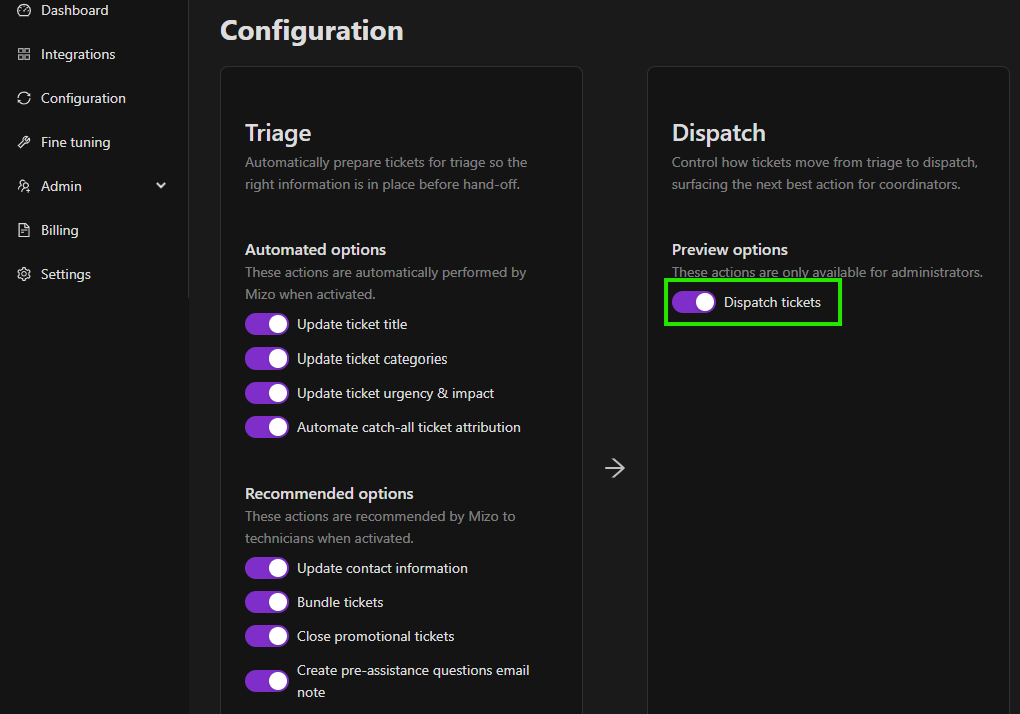
Make sure the dispatch feature is turned on and that technicians are active in your PSA.
Every enabled technician becomes eligible for automatic assignment or suggestion.Enabling boards and end users for dispatch
Mizo automatically considers technician availability, workload, and skills based on PSA data. In order to enable users and boards for dispatch, please go to the fine-tuning section and enable the desired boards and users.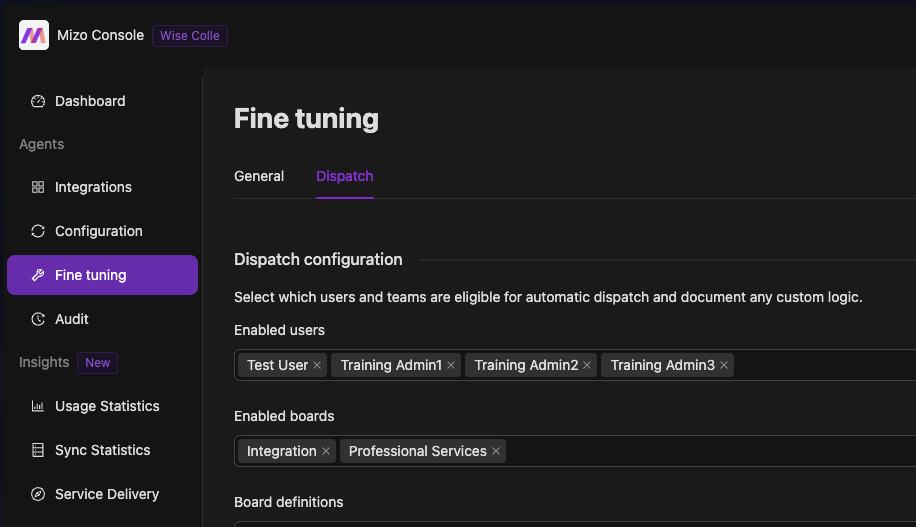
Custom instructions (optional) - Contact Mizo Team at [email protected]
If you want Mizo to follow your internal logic, you can add written instructions such as:- “For network tickets, prioritize senior technicians.”
- “Exclude tickets in status ‘Waiting for Customer’ from workload calculation.”
Clear, direct rules help Mizo adapt to your business context.
Keep your data clean
Mizo relies on your PSA data, especially calendars, statuses, and technician information.
Make sure this data stays accurate to ensure reliable dispatch suggestions.
Example Workflow
Here’s what a typical automated dispatch looks like:
A new ticket is created.
Mizo analyzes the context and available technicians.
Mizo recommends the best match within the pod when using the Dispatch Ticket action.
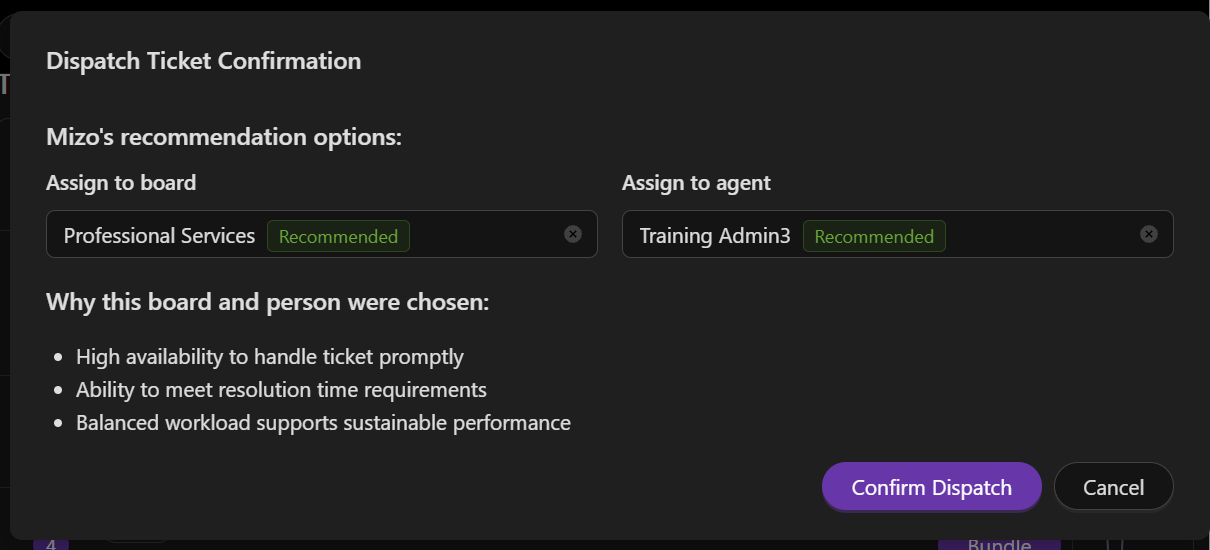
You can either confirm the dispatch or select the technician of your choice.
FAQ
Q: Can I see why Mizo chose a specific technician?
Yes — you can view the reasoning in the dispatch event log, which shows which rules and data influenced the decision.
Q: What if a technician is unavailable but not marked as off?
Mizo will still consider them available unless their calendar or PSA reflects their time off.
Q: Can I set rules for specific customers or ticket types?
Absolutely. You can create targeted instructions like:
For Client ABC, always assign to John unless unavailable.
Q: Does Mizo automatically assign tickets?
Currently, Mizo only recommends a technician and a board for each ticket.
The assignment still needs to be done manually by your team.