
Update Ticket Categories
When tickets are created from emails or unstructured requests, categories are often missing or inconsistent. This can make it harder to organize, route, and report on tickets accurately.
With Update Ticket Categories, Mizo automatically sets ticket categories, subcategories, and sub-subcategories based on the ticket content — pulled from your own PSA’s category list.
What it does
- Analyzes the ticket content and context
- Assigns the appropriate category, subcategory, and sub-subcategory from the categories your PSA already offers
- Re-evaluates the category if a ticket later moves to a different board or queue (when that setting is enabled)
- Ensures consistent classification across all tickets
Why it matters
- Tickets are organized and easier to manage
- Faster routing and assignment to the right team
- Improved reporting and analytics
- Reduced manual classification for support agents
How It Works
Mizo categorizes a ticket at two different moments:
- When a ticket first comes in. Mizo picks a category as part of its initial review, at the same time it sets the title and priority/impact. This decision is based on Mizo’s own summary of the ticket — not the customer’s raw ticket text — since the category is chosen before a title even exists yet.
- When a ticket later moves to a different board or queue. On a routine refresh, the category is left alone. It’s only reconsidered when the ticket has actually changed board or queue and the “Continuously update type/subtype/item” setting (see below) is turned on. When both are true, Mizo re-picks a category from the new board’s or queue’s own list and writes just the category fields back — it doesn’t touch the title, priority, or anything else at that point.
If a ticket’s board or queue never changes, Mizo never revisits its category after the first pass — that’s expected, not a gap.
Configurable Parameters
Update ticket categories — governs whether the category Mizo picks on a new ticket gets written to the PSA. The label changes per platform: ConnectWise shows “Update type / subtype / item,” Autotask shows “Update ticket category and issue type,” HaloPSA shows “Update ticket categories.” All three are the same setting.
| Setting | What happens |
|---|---|
| Off | Mizo still works out a category internally, but never writes it to the PSA and doesn’t create anything for a person to review. |
| Recommendation | Mizo adds an “Update ticket category” item to its to-do list for a person to review and apply manually. |
| Automation | The category is written straight to the PSA, alongside the title and priority/impact update. |
Continuously update type/subtype/item — governs whether Mizo re-picks and writes a new category when a ticket moves to a different board or queue. Its label uses ConnectWise wording on every platform — there’s no per-PSA override — so HaloPSA and Autotask customers see “type/subtype/item” even though those terms don’t otherwise exist in their PSA. On HaloPSA the setting does nothing at all, whatever it’s set to (see Platform Differences below).
| Setting | What happens |
|---|---|
| Off | No recategorization happens on a board/queue move. |
| Recommendation | Behaves exactly like Off for this setting — no recheck, no to-do item. |
| Automation | On a board/queue move, Mizo re-picks a category from the new board’s or queue’s list and writes it straight to the PSA — independently of whatever “Update ticket categories” is set to. |
Ticket category rules (fine-tuning) — free-text rules that steer Mizo toward or away from specific categories. Rules can only choose among categories that already exist in your PSA — they can’t invent a category the PSA doesn’t have.
Typical examples
- Before: No category assigned
- After: Category = Software / Subcategory = Email / Sub-subcategory = Sync Issue
How to Activate & Fine-Tune Ticket Categories
Activation
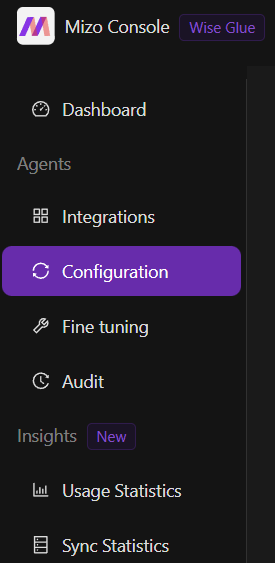
Go to the Configuration section in the Mizo console
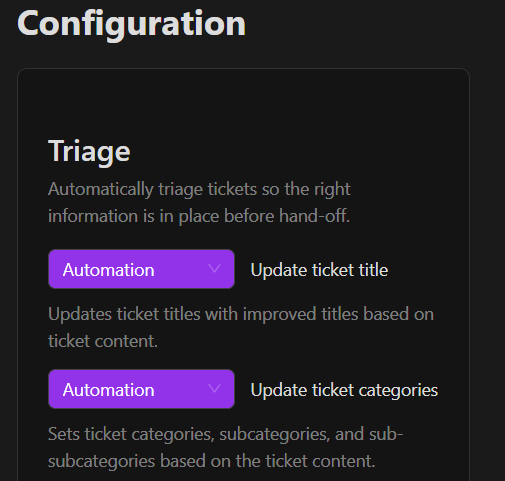
Enable Update Ticket Categories and choose how it should behave:
- Automation: Mizo automatically sets categories for every analyzed ticket
- Recommendation: Mizo suggests categories, and your team validates them before applying
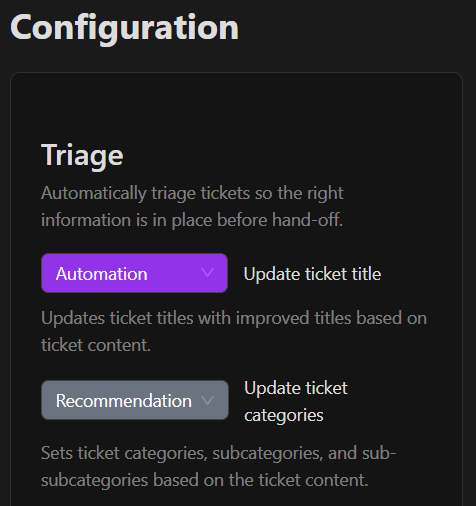
This will be saved automatically.
Once activated, Mizo will automatically categorize all new tickets.
There’s a second, separate setting — “Continuously update type/subtype/item” — that controls whether Mizo re-categorizes a ticket when it moves to a different board or queue. This label uses ConnectWise wording on every platform, even for HaloPSA and Autotask tenants where the term doesn’t otherwise apply.
Important: these two settings are not layered. A tenant with “Update Ticket Categories” Off but “Continuously update type/subtype/item” set to Automation will still see categories written automatically whenever a ticket changes board or queue. Turning off the main setting does not turn off recategorization on its own — if a customer wants no automatic category writes at all, both settings need to be off.
Fine-Tuning the Feature
Category selection is automatic, but you can steer it with a free-text fine-tuning rule.
Go to the Fine-Tuning tab and use the “Ticket category rules” field to:
- Rule out categories that technically exist in the PSA but are rarely the right pick (generic vendor-alert categories, for example) — instead of trying to trim the PSA’s own category list
- Add guidance for ticket types that are prone to misclassification
Rules can only choose among categories that already exist in your PSA — they can’t invent a category the PSA doesn’t have. And because Mizo compares rules against its own AI-generated title (never the customer’s original subject line), write rules around the meaning or topic of a ticket rather than an exact phrase a customer might type.
Concrete Usage Examples
- Board move triggers recategorization (ConnectWise). A ticket comes in on the “Networking” board: “VPN keeps disconnecting from home.” With “Update ticket categories” on Automation, Mizo picks a category from that board’s own list — say, Network > VPN > Connectivity — and writes it to the ticket right away, together with the title and priority. A dispatcher later moves the ticket to the “Security” board. If “Continuously update type/subtype/item” is set to Automation, Mizo notices the board changed, re-picks a category from the Security board’s own list, and writes it immediately — even if “Update ticket categories” itself is set to Off.
- Two-part category (Autotask). A ticket titled “Office printer won’t print” gets Category “Hardware” with Issue Type/Sub-Issue Type “Printer > Not Printing,” written as separate fields on the ticket.
Possible Error Messages
Nothing is ever shown to the end customer when this fails — there’s no error message on the ticket. A failed category write is logged internally and processing simply continues; you won’t see any sign of it beyond the category never showing up.
On Autotask specifically, there’s one edge case worth knowing: if Mizo’s category pick doesn’t resolve to a valid item in Autotask’s list, on a brand-new ticket this failure is loud — the whole initial review step fails for that run and the ticket doesn’t get processed. On the recategorization path (board/queue move), the same kind of failure is silent — nothing happens, no error, no category update, and nothing indicates a problem occurred.
Dependencies and Prerequisites
- Requires a connected, active PSA integration.
- ConnectWise and HaloPSA need their category, subcategory, and sub-subcategory values configured in the PSA.
- Autotask needs its Ticket Categories and Issue Types/Sub-Issue Types configured.
- The “Ticket category rules” fine-tuning field is optional.
Best Practices
- Start Update Ticket Categories at Recommendation while validating that Mizo’s picks match your tenant’s actual board/queue structure, then move to Automation once accuracy is confirmed.
- Only turn on Continuously update type/subtype/item for tenants where a board or queue move genuinely implies a different set of categories — meaningful on ConnectWise and Autotask, but it never does anything on HaloPSA (see Platform Differences).
- If a tenant wants category changes reviewed by a person rather than applied automatically, leave “Continuously update type/subtype/item” off too — Recommendation behaves exactly like Off for this particular setting.
Platform Differences
- ConnectWise — categories have three levels: Type, Sub-Type, and Item. The list Mizo chooses from is specific to the ticket’s current board, and each board can offer a different set of categories. Moving a ticket to a different board is what can trigger recategorization.
- HaloPSA — categories are a single combined field rather than three levels, and they aren’t tied to a board or queue. “Continuously update type/subtype/item” never does anything on HaloPSA, regardless of its setting.
- Autotask — categories use a two-part structure: a Category, plus an Issue Type/Sub-Issue Type pair. Recategorization is triggered by the ticket’s queue changing, the same way ConnectWise’s board-based trigger works.
Because the three platforms organize categories differently, the same ticket can end up categorized differently depending on the PSA, and a fine-tuning rule written with one PSA’s categories in mind may not carry over to another.
Frequently Asked Questions
“We set categories to Off — why did Mizo change the category anyway?” Check “Continuously update type/subtype/item.” It works independently of the main setting, so if it’s set to Automation, Mizo will still write categories automatically whenever a ticket moves board or queue.
“Why doesn’t recategorization work for us?” (HaloPSA) On HaloPSA, categories aren’t tied to a board or queue the way they are in ConnectWise or Autotask, so moving a ticket never triggers a recheck — this isn’t a bug, it simply doesn’t apply to how Halo organizes categories.
Roles and Permissions
Changing either setting requires full access to the Workflow page; read-only access can view the current settings. Once a category is written to a ticket, it’s a normal PSA field — anyone with access to the ticket in the PSA can see or change it from there.