Booking Link Management
Mizo connects directly with Microsoft Bookings to make scheduling effortless for your technicians and end users — with no manual setup required per ticket. When a technician is assigned to a ticket, Mizo automatically generates a personalized booking link scoped to that technician and delivers it to the end user via the pre-assistance email.
Expected outcomes:
- No back-and-forth to find a meeting time
- A smoother end-user experience
- Technicians focused on resolution, not coordination
1. Automatic Booking Link on Dispatch
When a technician is dispatched to a ticket, Mizo automatically:
- Generates a personalized booking link scoped to that technician
- Embeds the link in the pre-assistance email sent to the end user
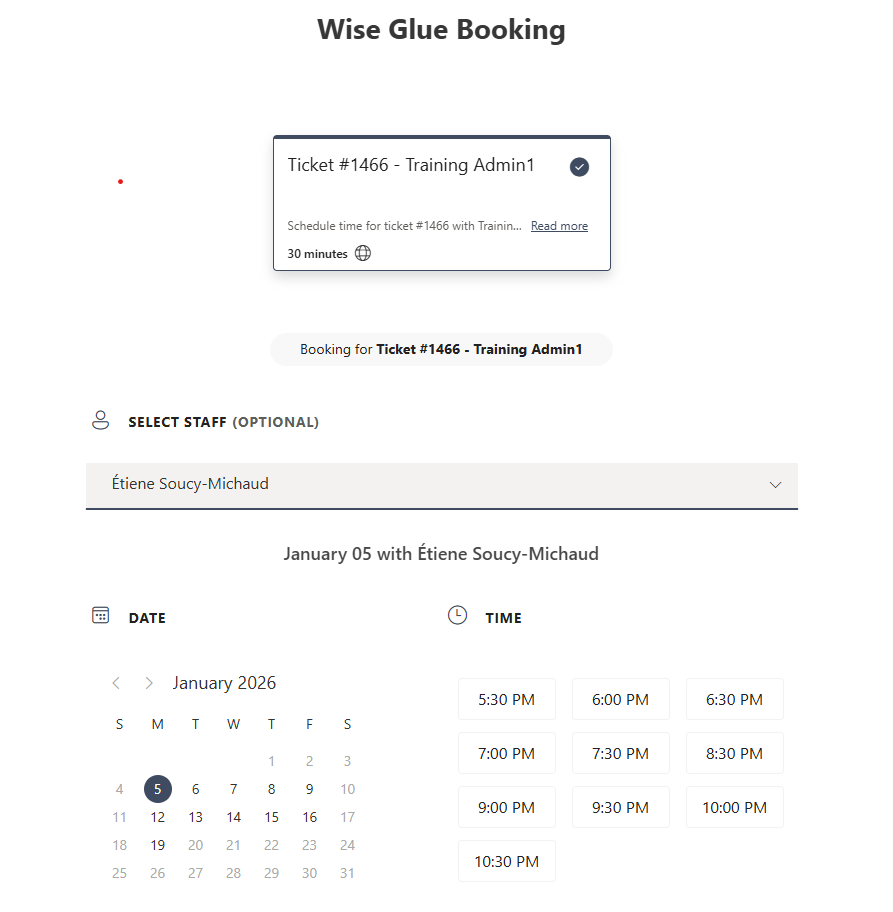
The end user receives the link directly in their inbox and can schedule a call or meeting on the assigned technician’s calendar — without any back-and-forth.
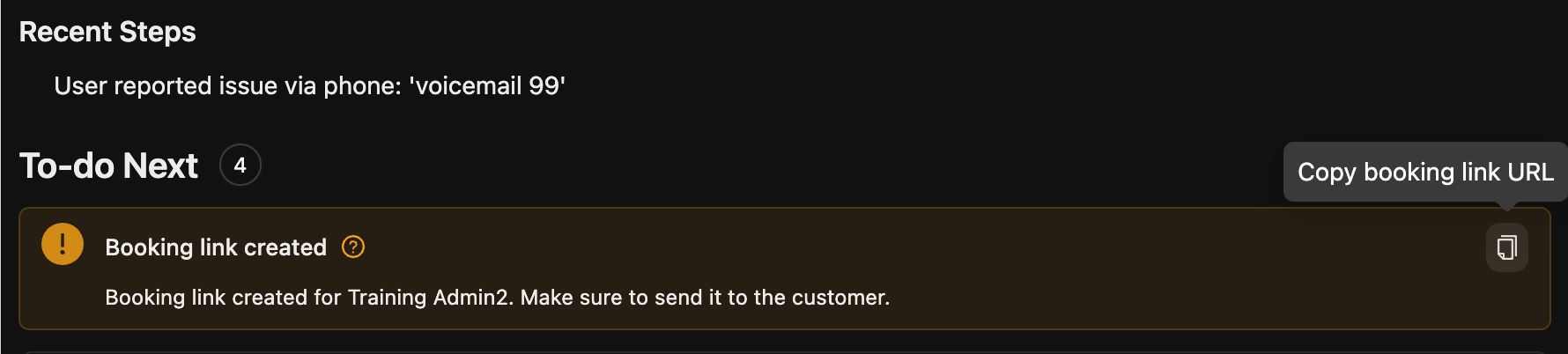
The Copy booking link button in the interface copies the link generated for the technician described in the banner.
2. Manual Booking Link from the Pre-Assistance Chat
If no technician has been dispatched yet, a booking link can still be generated on demand.
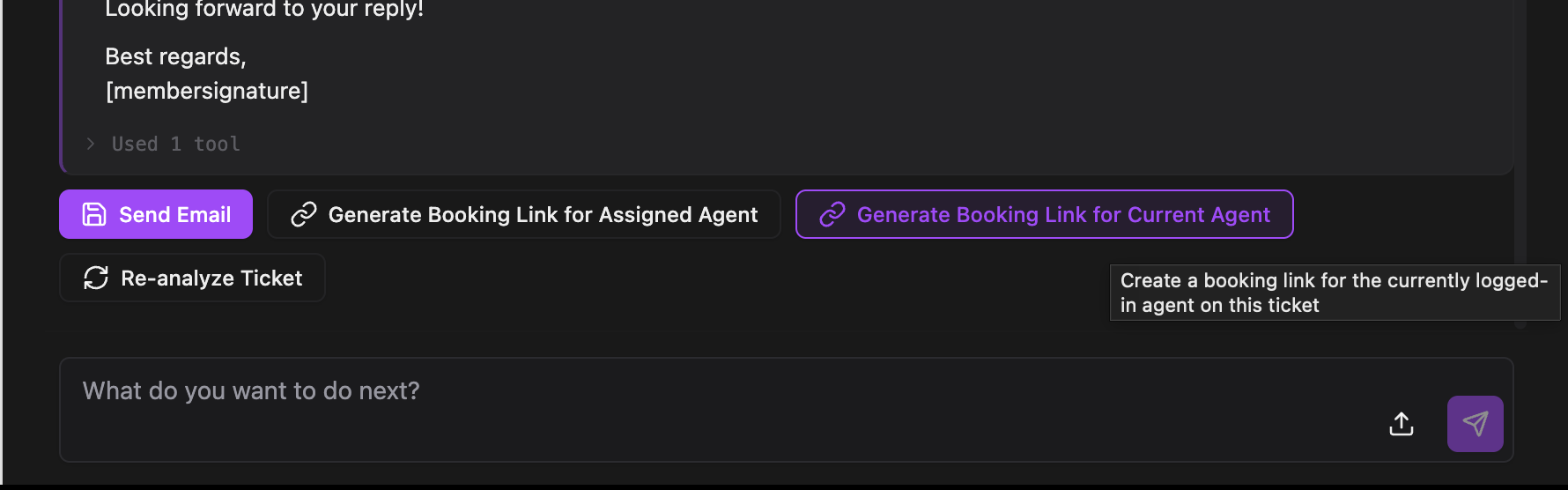
Technicians can trigger the link manually from within the pre-assistance chat. The booking link can be generated either for the currently logged-in technician or for the technician assigned to the ticket. Mizo will generate the link and include it in the outgoing email.
3. What Happens Behind the Scenes
Mizo handles all Microsoft Bookings configuration automatically:
- Registers the technician as a staff member in your Microsoft Bookings business
- Creates a dedicated booking service tied to the ticket
- Handles cleanup if the technician assignment changes
- Each link is valid for seven days and always scoped to the correct technician
No manual configuration is required per ticket — everything is managed automatically.
Here is an example of what your end users will see when they click on the booking link