
Create KB
Create KB is a Mizo feature that allows technicians to generate a knowledge base article directly from a resolved ticket’s resolution documentation. After Mizo produces a detailed resolution summary for a completed ticket, a “Create KB” button becomes available alongside the resolution output. Clicking it prompts Mizo to draft a structured, reusable knowledge base article based on the resolution steps, root cause, and context captured during the ticket lifecycle. The technician reviews the draft, makes any adjustments, and publishes it to the connected knowledge base platform. This is a recommendation-mode feature—Mizo generates the article, but the technician always reviews and approves before publication.
Why It Matters for MSPs
• Capture institutional knowledge in real time – Resolution steps are documented while the context is fresh, not weeks later when details have faded.
• Reduce repeat resolution time – When the same issue surfaces again, technicians can reference the KB article instead of troubleshooting from scratch—cutting resolution time significantly.
• Accelerate onboarding – New technicians have access to a growing library of proven resolution procedures, reducing their ramp-up time and dependence on senior staff.
• Improve first-call resolution rates – Tier 1 technicians and dispatchers can resolve common issues using KB articles without escalating, keeping the queue moving.
• Build a self-reinforcing documentation cycle – Every resolved ticket becomes a candidate for reusable documentation. Over time, your knowledge base grows organically from actual work—not from dedicated documentation sprints.
• Strengthen AI-assisted resolution – Published KB articles feed back into Mizo’s resolution engine. The more articles you publish, the more accurately Mizo can reference them for future similar tickets.
How It Works
The Create KB feature is integrated into Mizo’s resolution documentation workflow. Here is how the process flows:
• Ticket resolution is documented: When a ticket is resolved, the technician opens the Resolution Documentation panel. Mizo generates a comprehensive resolution summary that includes the root cause, step-by-step resolution procedure, linked KB articles and resources referenced during troubleshooting, and recommendations for follow-up.
• Create KB becomes available: At the bottom of the Resolution Documentation panel, the “Create KB” button appears alongside options to “Save the resolution summary as a note” and “Re-analyze Ticket.”
• Mizo drafts the KB article: When the technician clicks “Create KB,” Mizo transforms the resolution documentation into a structured knowledge base article. The draft is formatted for reuse—generalizing client-specific details where appropriate while preserving the technical accuracy of the resolution steps.
• Technician reviews and publishes: The technician reviews the generated article, edits any details as needed (e.g., removing client-specific references, refining wording), and publishes it to the connected knowledge base platform.
This is a recommendation-mode feature. Mizo generates the draft, but publication always requires technician review and approval. No article is published automatically.
How to Use It (Step-by-Step)
1. Once the ticket is resolved, click “Open” on the document resolution task in the To-do Next section. Mizo generates the full resolution summary including steps taken, root cause, referenced KB articles, and follow-up recommendations.
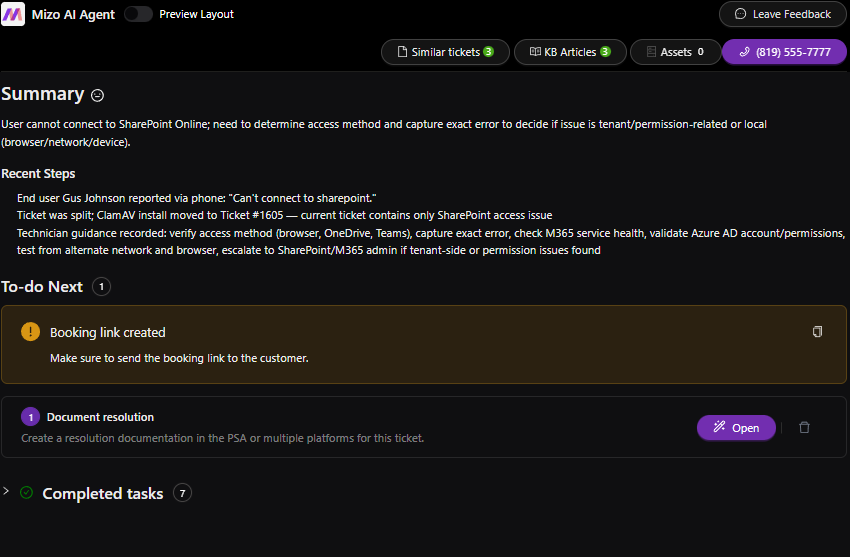
2. Review the resolution summary: Read through the generated resolution documentation to confirm it accurately captures the troubleshooting process and outcome.
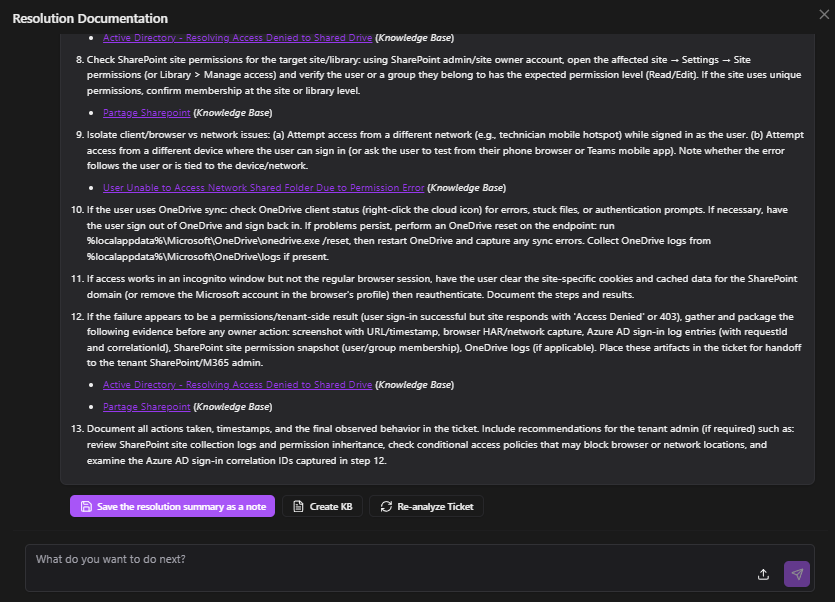
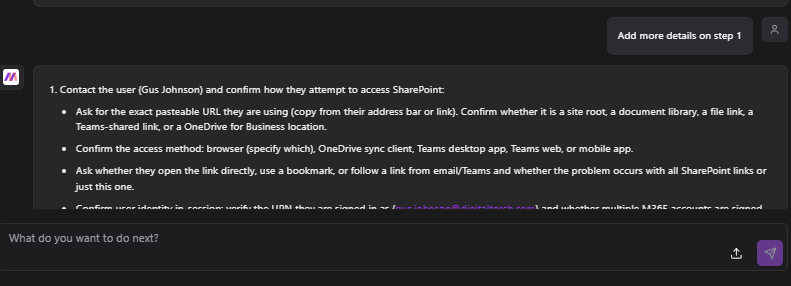
3. Edit and refine the article: Review the draft article. Remove or generalize any client-specific information (names, ticket numbers, internal references). Adjust the title, steps, and language to make the article useful for any technician encountering this issue in the future.
4. Click “Create KB”: At the bottom of the Resolution Documentation panel, click the “Create KB” button. Mizo processes the resolution content and generates a structured knowledge base article and publish it in your KB plateform.
Best Practices
• Prioritize KB creation for recurring issues. If your team has resolved the same type of problem more than twice, it’s a strong candidate for a knowledge base article.
• Encourage technicians to create KB articles as part of their resolution workflow—not as a separate documentation task. The “Create KB” button is positioned to make this a natural next step, not extra work.
• Review published articles periodically. You can see all the KB created within Mizo console Audit page https://app.mizo.tech/actions.
Need help configuring Create KB? Contact Mizo Support or visit mizo.tech for more resources.