
Create KB in documentation platform
Create KB is a Mizo feature that turns a resolved ticket into a knowledge base article — through a short chat with the technician, not an automatic action. A technician starts it either by opening the “Document resolution” suggestion in their to-do list, or by simply asking Mizo in the ticket chat to “create a KB” or “document this.” Either way, Mizo checks for an existing article on the same issue, asks any filing questions it can’t resolve on its own (which platform, which folder or customer), drafts a complete article, and waits for the technician’s explicit approval before publishing anything.
Why It Matters for MSPs
Capture institutional knowledge in real time – Resolution steps are documented while the context is fresh, not weeks later when details have faded.
Reduce repeat resolution time – When the same issue surfaces again, technicians can reference the KB article instead of troubleshooting from scratch—cutting resolution time significantly.
Accelerate onboarding – New technicians have access to a growing library of proven resolution procedures, reducing their ramp-up time and dependence on senior staff.
Improve first-call resolution rates – Tier 1 technicians and dispatchers can resolve common issues using KB articles without escalating, keeping the queue moving.
Build a self-reinforcing documentation cycle – Every resolved ticket becomes a candidate for reusable documentation. Over time, your knowledge base grows organically from actual work—not from dedicated documentation sprints.
Strengthen AI-assisted resolution – Published KB articles feed back into Mizo’s resolution engine. The more articles you publish, the more accurately Mizo can reference them for future similar tickets.
How It Works
Two ways to start:
- From the ticket’s to-do list. Once a ticket is resolved, a “Document resolution” suggestion appears, opening a dedicated KB-creation chat pre-loaded with the ticket’s notes and resolution. If the ticket has no resolution notes or triage summary at all, this dedicated chat window won’t open, and shows an error instead of starting a conversation.
- From the ticket chat. A technician can simply type a request like “create a KB for this,” and Mizo runs the same drafting flow, then reports back in the chat asking for approval. This path doesn’t have the same hard stop as the dedicated chat — Mizo will still attempt to draft an article from whatever ticket data is available, even if that’s very little.
Checking for duplicates first. Before drafting anything new, Mizo automatically searches your existing knowledge base for an article that already covers the same issue, using the ticket’s own analysis rather than just keyword matching. If it finds a good match, it shows the technician that article and asks whether to update it instead of creating a new one — this runs every time, so you don’t need to search manually first. By default this check only looks at articles filed under the current customer or the shared/general library; the Search-in-all-KB setting widens it to every customer’s articles.
Drafting and approval. Mizo writes a complete draft — problem, audience, notes, and numbered resolution steps pulled from the actual ticket. The technician can ask for edits before approving. Nothing is saved to your documentation platform until the technician’s next message clearly approves the draft or clearly instructs Mizo to publish it — a vague “ok” or no response doesn’t trigger publishing, and Mizo is instructed to ask for clarification rather than guess.
This is always a recommendation-mode feature. There is no setting that publishes a KB article without a technician’s explicit approval.
Mizo doesn’t judge whether a ticket is worth documenting. If a technician triggers KB creation on a trivial, non-technical, or thin ticket, Mizo will still produce and offer a full article rather than declining — the only safeguard against low-value articles is the technician choosing not to approve the draft.
How to Use It (Step-by-Step)
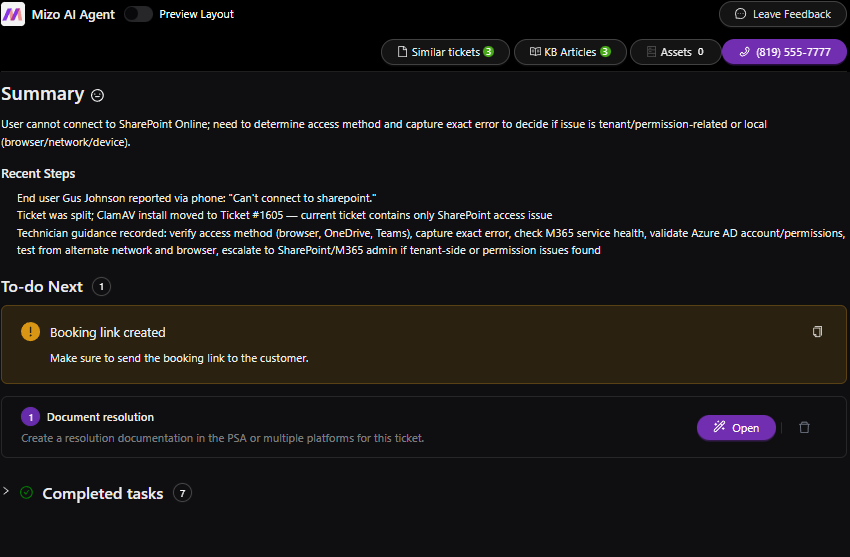
- Once the ticket is resolved, click “Open” on the document resolution task in the To-do Next section. Mizo generates the full resolution summary including steps taken, root cause, referenced KB articles, and follow-up recommendations.
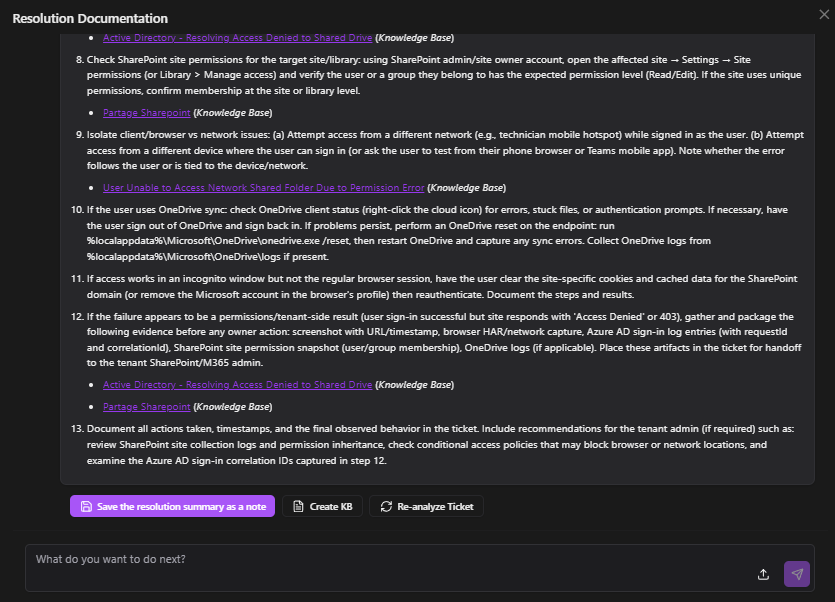
- Review the resolution summary: Read through the generated resolution documentation to confirm it accurately captures the troubleshooting process and outcome.
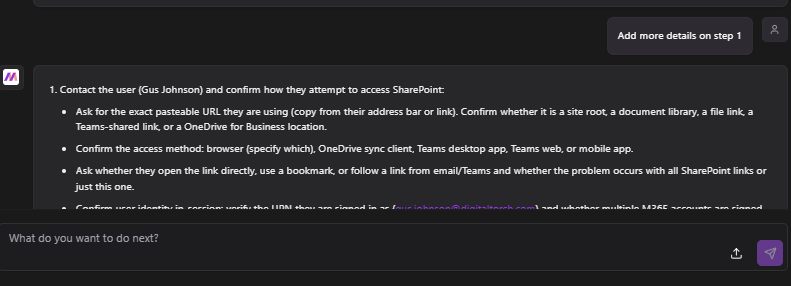
- Edit and refine the article: Review the draft article. Remove or generalize any client-specific information (names, ticket numbers, internal references). Adjust the title, steps, and language to make the article useful for any technician encountering this issue in the future.
- Approve the draft: At the bottom of the Resolution Documentation panel, click “Create KB” or tell Mizo to publish it. Mizo files the article to your connected knowledge base platform.
Tip: Technicians can also ask Mizo to update an existing KB article by referencing it directly by its ID or link. This makes it easy to keep articles current as resolution procedures evolve, without creating duplicates.
Settings
Configured under Workflow → “Create knowledge base entries”:
| Setting | What Happens |
|---|---|
| Off | No “Document resolution” reminder appears on resolved tickets. Technicians can still ask Mizo to draft and publish a KB article from the ticket chat at any time. |
| Recommendation | Resolved tickets get a “Document resolution” suggestion in the to-do list. |
There’s no fully automatic level — publishing always requires a technician’s approval, regardless of this setting.
Two more settings shape this feature:
- Search-in-all-KB — controls whether the duplicate-article check looks across every customer’s articles or just the current customer plus your shared library. Worth enabling once your KB library has grown large enough that duplicate coverage across customers becomes a real risk.
- Knowledge base creation rules (Fine-tuning) — free-text rules for how articles should be structured, titled, worded, and what sections they must include. These rules can override Mizo’s default content exclusions — for example, requiring PSA closing steps or client-contact notes to be included — when they explicitly say so.
Roles and Permissions
- Turning the “Create knowledge base entries” reminder on/off and adjusting the Search-in-all-KB scope requires full (edit) access to the Workflow page; viewing the current setting only requires read access.
- Editing the “Knowledge base creation rules” fine-tuning text requires full access to the Fine-tuning page.
- The chat conversation itself — drafting and publishing — runs through the same ticket panel every technician uses inside the PSA. It doesn’t carry a separate per-technician “who is allowed to publish KB articles” permission beyond having access to the ticket panel at all.
Troubleshooting / Possible Error Messages
- “No integrated documentation platform supports KB creation.” — shown when the technician tries to publish and no eligible destination exists (a connected documentation platform, or HaloPSA with KB creation allowed).
- “Company name is required for client-scoped KB (ticket has no client and none was provided).” — the article is being filed under a specific customer, but the ticket has no known customer name and the technician didn’t specify one.
- “Platform with system key ’…’ not found or does not support KB creation. Available: …” — the technician (or a prior turn) referenced a platform that isn’t actually connected or KB-capable.
- “kbLocationScope is required when the selected platform supports more than one KB location…” — the technician asked to publish before answering where to file the article (for example, a specific customer’s folder vs. the general library), when the platform requires that choice.
- When the dedicated KB-creation chat window can’t open at all (no resolution notes and no ticket analysis exist yet for that ticket), the technician sees a generic failure rather than a clear explanation — worth knowing if a customer reports “the KB button doesn’t work.”
Dependencies or Prerequisites
- The ticket needs prior resolution content (ticket notes and/or Mizo’s own analysis of the ticket) for a meaningful draft; an empty or unprocessed ticket has nothing to draft from.
- A publishing destination must be connected and enabled: a documentation platform (Hudu, IT Glue, Confluence, or SharePoint), or HaloPSA with its “Allow KB Creation” option turned on. Without one, drafting still works in chat, but saving fails.
- The similar-article check depends on the ticket already having been analyzed by Mizo — very new or unprocessed tickets may not have this available yet.
Best Practices
Prioritize KB creation for recurring issues. If your team has resolved the same type of problem more than twice, it’s a strong candidate for a knowledge base article.
Encourage technicians to create KB articles as part of their resolution workflow—not as a separate documentation task. The “Create KB” button is positioned to make this a natural next step, not extra work.
Make sure a documentation platform (Hudu, IT Glue, Confluence, or SharePoint) is connected — or, on HaloPSA, that “Allow KB Creation” is turned on — before promising this feature to a technician, so the whole conversation doesn’t end in a publishing error.
Start the “Create knowledge base entries” setting at Recommendation rather than Off — it doesn’t change what technicians can do in chat, but it adds the “Document resolution” nudge that prompts them to document tickets they might otherwise skip.
Review published articles periodically. You can see all the KB created within Mizo console Audit page https://app.mizo.tech/actions.
Concrete Usage Examples
- A technician resolves a recurring VPN client crash and wants it documented. They open the “Document resolution” to-do (or type “create a KB” in the ticket chat). Mizo first checks for an existing article on the same issue; finding none, it asks which customer or shared library to file under (if more than one option applies), then presents a full draft — problem, audience, notes, and numbered procedure steps pulled from the actual ticket notes. The technician asks for an edit (“add the registry key I mentioned”) before approving; once they say “publish it,” Mizo saves the article to the connected platform and posts a note in the ticket linking to it.
- A technician asks for a KB on an issue that already has one. Mizo’s duplicate check surfaces the existing article with a summary of what’s outdated, and asks whether to update that article instead of creating a new one — so it doesn’t silently create a near-duplicate.
“Will this fill our knowledge base with junk?” Mizo always checks for an existing similar article first and offers to update it instead of duplicating it, and it never publishes without a technician explicitly approving the exact draft shown in chat — nothing reaches the documentation platform automatically. That said, Mizo does not judge whether a ticket is worth documenting at all; if a technician approves a low-value draft, it will be published as-is.
“Who approves what gets published?” Whoever is using the ticket chat in the PSA at the time — there is no separate publish-approval role. The chat requires an explicit “yes, publish” or equivalent from that technician on the exact draft shown; a vague “ok” or no response does not trigger publishing.
“Why didn’t Mizo create a KB on this ticket automatically?” It never does, by design — this feature always waits for a technician to start the conversation and approve the final draft. At most, Mizo puts a reminder in the technician’s to-do list when the setting is on Recommendation.
Per-Platform Differences
- ConnectWise and Autotask have no knowledge base of their own — a connected documentation platform (Hudu, IT Glue, Confluence, or SharePoint) is required for publishing to work.
- HaloPSA can host articles directly inside Halo itself once “Allow KB Creation” is turned on for the integration — no separate documentation platform is required, though one can still be used alongside it. Articles created this way are filed in Halo’s general knowledge base rather than under a specific customer.
Need help configuring Create KB? Contact Mizo Support or visit mizo.tech for more resources.