
Dispatch
How Dispatch Works in Mizo
Overview
Mizo can automatically suggest or assign the best team and technician for each new ticket. Right after a ticket is triaged, dispatch works in two steps: first shortlisting which team, board, or queue should own the ticket, then ranking the technicians on that team to find the best match.
This page explains how Mizo makes both calls, how you can fine-tune the logic for your team, and how the optional internal dispatch note works.
Why Use Mizo’s Smart Dispatch
- Reduce response time and missed tickets
- Match tickets with the right skills
- Balance workload across your technicians
- Keep the same technician with recurring clients for better follow-up
- Optionally get an internal heads-up note on anything a technician should know before starting
How Mizo Decides Who Gets the Ticket
Team selection. Mizo reads the ticket’s subject, description, and category, and shortlists the top 3 candidate teams, boards, or queues most likely to handle it — using any custom team definitions you’ve written, or the team names themselves if you haven’t.
Technician selection. From the technicians on those teams, Mizo ranks candidates using these factors, in this order of priority:
| Factor | What It Means | Why It Matters |
|---|---|---|
| Availability | Checks the technician’s working hours and time off. An unavailable technician is excluded outright. | Prevents assigning tickets to someone who’s off. |
| SLA fit | How quickly that technician has historically resolved similar tickets. | Keeps response times inside your service agreements. |
| Workload balance | Weighs both current open work (open ticket count and estimated remaining work) and how many tickets they’ve received recently relative to their scheduled hours over the last week. | Avoids two failure modes at once: always picking whoever’s queue looks lightest even if they’ve been getting a disproportionate share of new tickets lately, and unfairly skipping someone whose queue looks heavy but who hasn’t actually gotten new work in a while (aging tickets, not overload). |
| Skill match | A similarity score against the technician’s history of similar past work. Used only to break ties between technicians who are otherwise close on the factors above. | Favors the technician most familiar with the issue, without letting it override availability or workload. |
If you’ve written custom dispatch rules, those apply first as hard eligibility filters — a technician a rule excludes is removed from consideration entirely, even if they’d otherwise be the best fit on every other factor.
Note: Mizo can suggest a technician or automatically assign one, depending on your workflow configuration.
How technician skill profiles get built. Skill match needs some history to work from. For a brand-new tenant, Mizo waits at least 24 hours after setup (to let the initial PSA sync finish), then works through the tenant’s recent ticket history in batches, building each technician’s profile from tickets they were assigned and that Mizo has already triaged. On a large ticket history this can take a while to complete; until it does — or for a technician with no assignment history — skill match simply isn’t used for that person, and Assign works off availability, SLA fit, and workload in the meantime. After the initial build, every newly closed ticket blends into the assigned technician’s profile going forward, weighting recent tickets more heavily than older ones — so a technician who’s shifted into new specialty work will show that shift within a handful of closed tickets, not instantly and not from a single one.
When nothing happens, that’s usually expected, not a bug:
- If a team is found but no technician on it is eligible (for example, an allowlist configured with nobody on that team enabled), the ticket still goes to the team or queue level, but no individual technician is picked.
- If no team at all can be matched to the ticket’s content, dispatch produces nothing — at Recommendation, no action even appears on the ticket for a person to review.
- If every technician who’d otherwise qualify is excluded by a written dispatch rule, Mizo won’t force an assignment — it explicitly returns “no technician” and explains which rule eliminated each candidate. This only happens when literally everyone is excluded; if even one eligible technician remains, Mizo always assigns someone, even if that person isn’t the ideal pick.
How to Configure Dispatch Rules
Once enabled in the Mizo Dashboard (Link), Mizo automatically uses your connected PSA data to understand who can receive tickets and how to prioritize them — there’s no need to build complex rules from scratch.
Set the Assign tickets automation level:
| Setting | What Happens |
|---|---|
| Off | Dispatch does not run at all. No team or technician is computed, nothing appears on the ticket, and nothing is billed for this step. |
| Recommendation | Mizo adds a “Dispatch ticket” action to the ticket with its pick pre-filled, along with the reasoning behind it. A dispatcher reviews, can change the team or technician (or add an explanation for overriding the pick), then confirms before anything is written to the PSA. |
| Automation | Mizo writes the team and technician to the PSA ticket immediately, with no review step. |
Here’s what else you can configure:
Enable dispatch for your technicians in Mizo Dashboard:
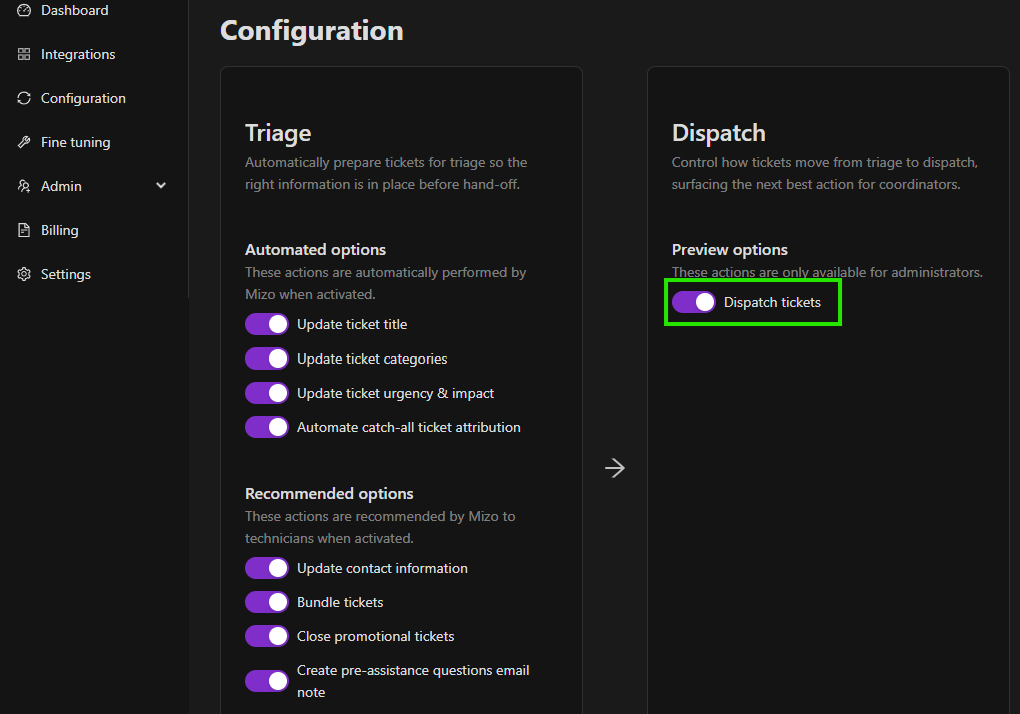
Make sure the dispatch feature is turned on and that technicians are active in your PSA. Every enabled technician becomes eligible for automatic assignment or suggestion.
Enable boards and users for dispatch
Choose which boards and users are eligible for dispatch in the fine-tuning section. An empty list means nothing is eligible.
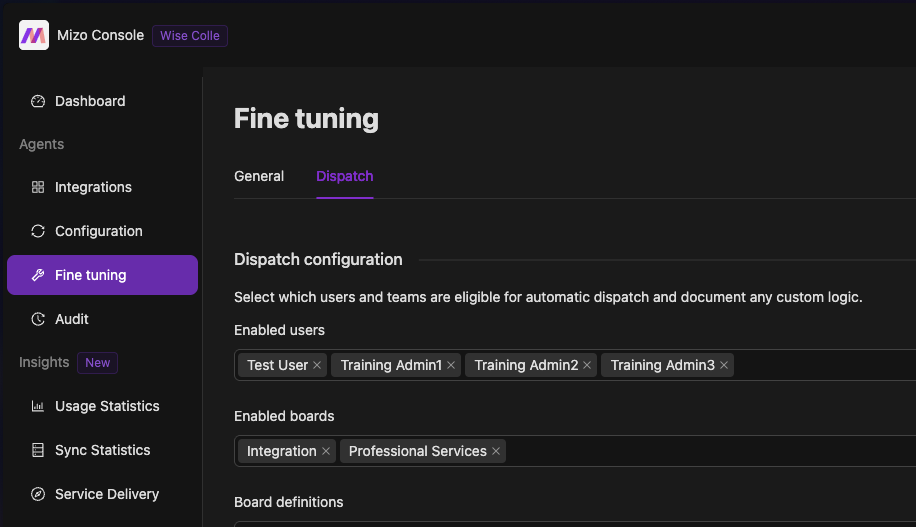
Custom instructions (optional) — Contact Mizo Team at [email protected]
If you want Mizo to follow your internal logic, you can add written dispatch rules such as:- “For network tickets, prioritize senior technicians.”
- “Exclude tickets in status ‘Waiting for Customer’ from workload calculation.”
Clear, direct rules help Mizo adapt to your business context.
Keep your data clean
Mizo relies on your PSA data, especially calendars, statuses, and technician information.
Make sure this data stays accurate to ensure reliable dispatch suggestions.Fine-tune the eligibility and matching logic further. Beyond allowlists, team definitions, and dispatch rules, two more opt-in toggles live under Fine-tuning, both off by default:
- Dispatch per location — restricts candidates to technicians at the ticket’s own location/territory. If a customer reports technicians from the wrong office being picked, check whether this is on.
- Ignore technician workload for dispatch — removes workload balance from the ranking entirely. Check this first if workload seems to be ignored, or unexpectedly weighted, in a customer’s picks.
On ConnectWise, a client’s own dedicated support team members are also pulled in as extra dispatch candidates alongside the normal team pool, and Mizo is told which technicians belong to that client specifically. This isn’t currently available on HaloPSA or Autotask — company team members are never fetched there, so dispatch only considers the shortlisted teams’ normal membership. Don’t promise client-specific dedicated-team dispatch on HaloPSA or Autotask.
Example Workflow
Here’s what a typical automated dispatch looks like:
A new ticket is created.
Mizo analyzes the context and available technicians.
Mizo recommends the best match within the pod when using the Dispatch Ticket action.
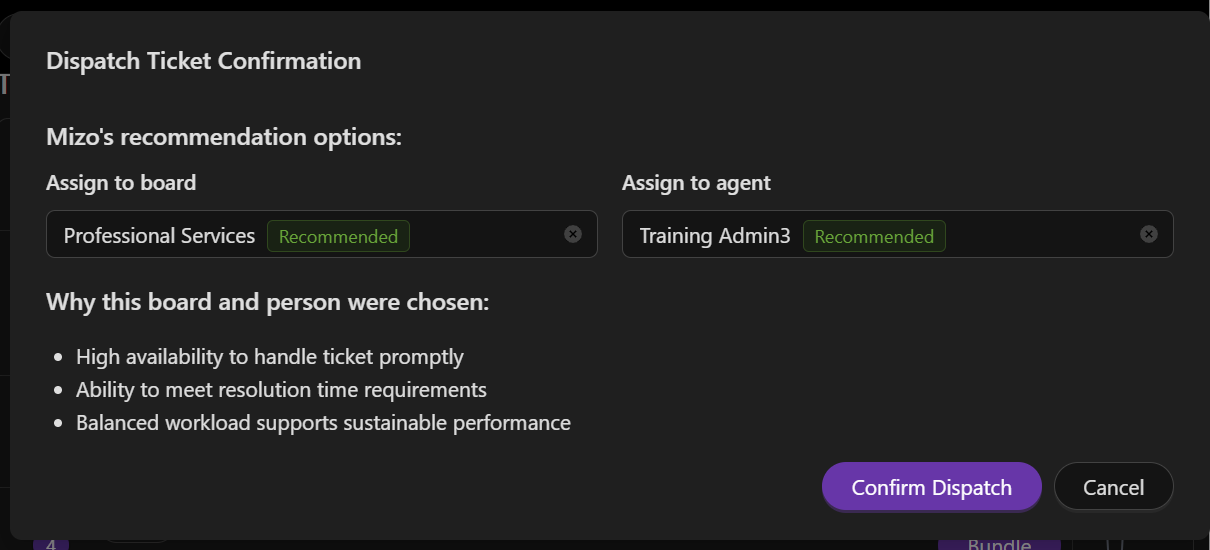
You can either confirm the dispatch or select the technician of your choice.
Optionally, add a ticket note before dispatching. This lets you include context, instructions, or observations for the assigned technician directly in the ticket — so they have everything they need when they pick it up.
Internal Dispatch Notes
When Mizo dispatches a ticket, it can also leave a short, private note for the assigned technician — a one- or two-sentence heads-up about something worth knowing before they start: a gotcha, a security concern worth double-checking, an approval gate, or a notable contact (a VIP or executive). If nothing about the ticket stands out, Mizo simply doesn’t write a note — that’s expected, not a malfunction.
This note is always internal. It’s never visible to the customer, never emailed, and never appears on a customer portal — on every supported PSA. One cosmetic difference: in Autotask the note appears under a “Mizo Note” heading, while ConnectWise and HaloPSA show it unlabelled. That only changes how it looks to a technician, not who can see it.
This only ever happens as part of dispatch (Assign) — it never runs on its own:
- The note is only drafted once Mizo has actually produced a dispatch recommendation, which itself requires Assign to be enabled at least at Recommendation.
- The note is only posted to the PSA automatically once the ticket is dispatched under full automation — which requires Assign itself to be at Automation, not just Recommendation.
- If Assign is at Recommendation only, Mizo still drafts a candidate note, but it’s only posted if the person reviewing and confirming the dispatch keeps that note text when approving. Mizo never posts it by itself in that mode.
Configure it under Create dispatch note:
| Setting | What Happens |
|---|---|
| Off | No note is ever drafted. No AI cost for tenants that don’t use it. |
| Recommendation | Mizo drafts a candidate note whenever it produces a dispatch recommendation (this still requires Assign to be enabled). It’s only posted if the reviewing technician keeps the note text when confirming the dispatch. |
| Automation | Mizo drafts and posts the note automatically the moment it dispatches the ticket — but only if dispatch itself is also set to Automation. If Assign is at Recommendation while this is at Automation, the note is still only drafted, not auto-posted. |
Use the Dispatch Note Instructions fine-tuning field to steer what the note focuses on — for example, “always flag when a ticket touches production servers.” It can shape wording, but it can’t make the note longer than two sentences, force a note where Mizo would otherwise write none, or change anything about the assignment or scheduling itself.
The tenant-wide setting for both Assign and the dispatch note can be overridden for individual client locations, the same way other automation settings can.
Troubleshooting / Possible Error Messages
When a dispatcher is reviewing a Recommendation-level pick in the PSA ticket, they may see:
- “We couldn’t load the dispatch options. Please try again.” — the options for the confirmation dialog failed to load.
- “Failed to dispatch the ticket. Please try again.” — the confirmation was submitted but the write to the PSA failed.
Everything else about Assign fails silently. If Mizo can’t fetch a technician’s current workload, availability, recent assignment history, or skill score, no error appears anywhere — it simply proceeds with whatever signals it does have and makes the best pick it can with less information. Likewise, when no team or no eligible technician can be found at all, nothing appears on the ticket to say Assign was even attempted.
The internal dispatch note has no user-facing error messages at all. Every failure mode is silent:
- If Mizo decides there’s nothing worth flagging, it skips the note entirely — no note, no error. This is the most common outcome by far.
- If note generation itself fails (for example, an AI service hiccup), dispatch continues normally with no note — the ticket looks exactly like one where Mizo simply decided not to write a note.
- If posting the finished note to the PSA fails, the ticket is still dispatched normally; only the note is silently missing.
Roles and Permissions
- Turning Assign on or off (the automation level) requires full access to the Automation page in the Mizo Dashboard; users with read-only access can see the setting but not change it.
- Configuring eligible teams/technicians, team definitions, dispatch rules, and the location/workload toggles requires full access to the Fine-tuning page.
- Confirming a Recommendation-level pick happens inside the PSA ticket itself, not in the Mizo Dashboard — any technician with access to open that ticket in your PSA can confirm and dispatch it, independent of their Mizo Dashboard permission level.
- The same applies to the Create dispatch note toggle and the Dispatch Note Instructions field: read-only access to view, full access to edit, on the Workflow and Fine-tuning pages respectively.
Per-PSA Differences
- ConnectWise: a client’s own dedicated support team is pulled in as extra dispatch candidates alongside the normal team pool. HaloPSA and Autotask do not support this today.
- ConnectWise: when Automation both assigns a technician and books an appointment in the same pass, the technician is set as the calendar entry’s owner rather than as the ticket’s separate owner field — the net effect on the ticket (technician assigned) is the same either way.
- Autotask: the internal dispatch note appears under a “Mizo Note” heading. ConnectWise and HaloPSA show the same note unlabelled.
- The dispatch note is always private/internal across all three platforms — there is no PSA where it becomes customer-visible.
FAQ
Q: Can I see why Mizo chose a specific technician?
Yes — the dispatch reasoning names the specific factors (availability, workload numbers, SLA fit, skill match percentage) that drove the pick, visible in the Recommendation-level action and in the audit trail when Automation wrote it directly.
Q: What if a technician is unavailable but not marked as off?
Mizo will still consider them available unless their calendar or PSA reflects their time off.
Q: Can I set rules for specific customers or ticket types?
Absolutely. You can create targeted instructions like:
For Client ABC, always assign to John unless unavailable.
Q: Does Mizo automatically assign tickets?
It depends on your configuration. At Recommendation, Mizo suggests a team and technician for a dispatcher to confirm. At Automation, Mizo assigns tickets directly with no manual step.
Q: Why didn’t Mizo dispatch this ticket at all?
Usually because no team could be matched to the ticket’s content, or because a written dispatch rule excluded every otherwise-eligible technician. Both can be completely silent — check your team definitions and dispatch rules first.
Q: Why does Mizo keep suggesting the same technician?
Check whether a written dispatch rule is steering toward them, and whether other technicians on the team have a PSA work schedule configured at all — one without a schedule is evaluated against a generic Monday–Friday, 9am–5pm default rather than their real hours, which can quietly make them look less available than they are.
Q: A brand-new hire never gets picked — why?
New technicians start with a skill match of zero until they’ve resolved a handful of tickets and Mizo has had time to build their profile. That’s expected, not an error — Assign still ranks them on availability, SLA fit, and workload in the meantime.
Q: Can our customers see the internal dispatch note?
No — it’s always private, across every supported PSA.
Q: The dispatch note isn’t posting automatically — why?
Check the Assign automation level first. If Assign is at Recommendation while “Create dispatch note” is at Automation, nothing posts on its own — the note only reaches the PSA once a dispatcher approves the dispatch and keeps the drafted text.
Q: Can we turn any of this off for one client?
Yes — automation settings, eligible-teams/technicians allowlists, and dispatch rules can all be overridden or scoped to a specific location.