
Resolution Steps
Resolution Steps is a core feature of the Mizo that automatically generates step-by-step troubleshooting instructions for service tickets — drafted from your own knowledge base articles. When a technician opens a ticket, Mizo analyzes the issue summary, recent activity, and matched KB articles to produce a tailored resolution plan. Technicians can review, refine, ask follow-up questions, and finalize the steps directly within the ticket view — reducing diagnosis time and ensuring consistent, knowledge-driven resolutions across your team.
Why It Matters for MSPs
- Faster time-to-resolution. Technicians no longer start from scratch. Mizo surfaces a structured action plan immediately, cutting the research and diagnosis phase significantly.
- Consistent service quality. Resolution steps are drawn from your documented knowledge bases, ensuring every technician — from junior to senior — follows proven procedures rather than improvising.
- Reduced escalations. Detailed, context-aware steps help L1 technicians resolve issues that would otherwise be escalated, freeing up senior staff for higher-value work.
- Knowledge base utilization. Many MSPs invest in documentation that rarely gets referenced during live troubleshooting. Resolution Steps automatically pulls from relevant KB articles, putting that investment to work on every ticket.
- Built-in technician training. Junior techs learn proper troubleshooting methodology by following AI-recommended steps grounded in your team’s best practices.
How It Works
Ticket analysis. When a ticket is active, Mizo reads the ticket summary, recent steps (notes, emails, phone interactions), and matches the issue against similar tickets and KB articles in your environment.

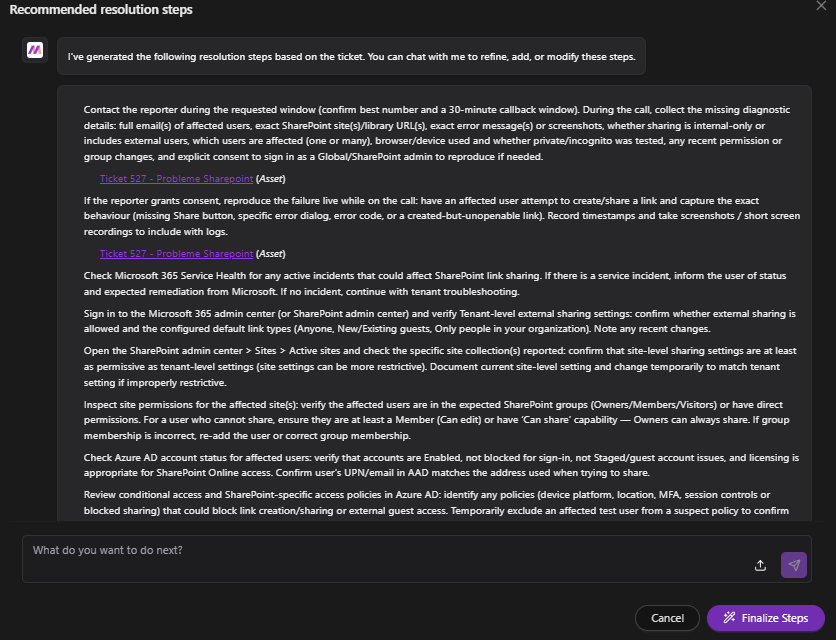
Step generation. Mizo drafts a complete set of resolution steps tailored to the specific issue. These steps reference linked assets, KB articles, and ticket history where applicable. Each step is actionable and ordered logically — from initial contact and data gathering through diagnosis, remediation, and verification.
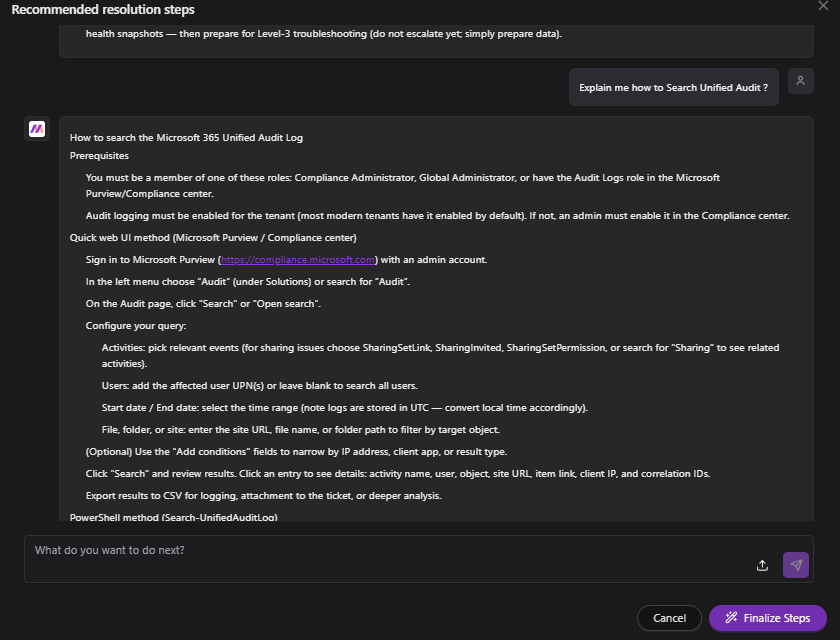
Interactive refinement. The resolution steps panel includes a chat interface. Technicians can ask Mizo follow-up questions (e.g., “Explain me how to Search Unified Audit?”) and receive detailed, contextual guidance without leaving the ticket.
Finalization. Once the technician is satisfied with the plan, they click Finalize Steps to commit the resolution steps to the ticket workflow.
How to Use It (Step-by-Step)
- Open a ticket in the Mizo AI Agent interface. Review the Summary, Recent Steps, and To-do Next sections at the top of the ticket view.
- In the To-do Next section, locate the Recommended resolution steps card. It will indicate how many relevant knowledge bases were used to draft the steps (e.g., “Resolution steps drafted from 3 relevant knowledge bases”).
- Click View steps to open the Resolution Steps panel.
- Review the generated steps. Mizo presents a full troubleshooting sequence — from initial contact and information gathering through tenant-level checks, permission audits, policy reviews, remediation actions, and documentation requirements.
- Notice linked references within the steps. Mizo cites specific Assets (e.g., related tickets) and Knowledge Base articles inline, so you can jump to source documentation if needed.
- If you need clarification on any step, type a question in the “What do you want to do next?” chat field at the bottom of the panel. Mizo will respond with detailed procedural guidance relevant to your question.
- Once the steps are reviewed and adjusted to your satisfaction, click Finalize Steps to apply them to the ticket.
Best Practices
- Review before finalizing. Resolution steps are recommendations, not mandates. Always review the generated steps against the specific ticket context before committing them.
- Use the chat for deeper guidance. If a step references a process your technician is unfamiliar with (e.g., searching Microsoft 365 Unified Audit Logs), ask Mizo directly in the panel rather than switching to external resources.
- Keep your knowledge base current. The quality of resolution steps is directly tied to the quality and coverage of your KB articles. Regularly updating your documentation improves Mizo’s output over time.
- Encourage L1 adoption. Resolution Steps is most impactful when junior technicians use it as their default starting point, building good diagnostic habits from day one.
- Leverage similar tickets. Pay attention to the Similar tickets count shown at the top of the ticket view. These provide additional context that Mizo uses and that technicians can review manually.
Common Use Cases
- SharePoint/M365 permission issues. A user reports they cannot share links in SharePoint. Mizo generates steps covering tenant sharing settings, site-level permissions, Azure AD account status, conditional access policies, and client-side troubleshooting — all drawn from existing KB articles on access and permission errors.
- Network access and shared drive problems. An end user is denied access to a shared drive. Mizo references KB articles on Active Directory permissions and network share troubleshooting to build a structured diagnostic path.
- Callback coordination. When a ticket involves a scheduled callback, Mizo includes contact logistics (phone number, requested time window) in the resolution steps alongside technical troubleshooting, ensuring nothing falls through the cracks.
- Multi-step compliance checks. For issues that require admin-level verification across multiple systems (M365 admin center, SharePoint admin center, Azure AD, Purview), Mizo sequences the checks logically so the technician works through them efficiently in a single session.
Automatic Resolution for Supported Scenarios
For a small, growing list of specific problems, Mizo goes a step further than drafting steps — it can diagnose the exact cause and, once a technician approves, apply the fix directly on the connected system. Today that list has one entry: a Microsoft 365 user who’s locked out or needs a password reset.
How It Works
Mizo checks every new ticket in the background to see whether it matches a supported scenario. No one has to request this — it happens automatically as part of normal ticket processing, independent of the general resolution-steps drafting described above, and whether or not the technician ever opens the Resolution Plan panel.
When a ticket matches, Mizo builds a resolution plan: a hypothesis of the root cause, the specific account affected, an identity check confirming the requester is authorized to make this request, any relevant internal procedure, and the steps needed — including the actual fix. This appears in a Resolution Plan panel on the ticket, with a status (Draft, Completed, Failed) and the plan details, along with any security warnings.
Building a plan never changes anything. Diagnosis is entirely read-only. The plan only becomes a real change when a technician reviews it and clicks Apply resolution plan — a button that only appears once a plan has a pending fix step ready to run. At that point, Mizo re-confirms everything is still valid — the account still matches, the domain is approved, write access is still enabled — and then performs the fix. For the supported M365 scenario, that means resetting the user’s password, forcing a change on next sign-in, and emailing the temporary password to the ticket’s contact. Afterward, Mizo logs a resolution note on the ticket summarizing what was done and marks the “Validate resolution step” checklist item complete.
If a ticket doesn’t match a supported scenario, the Resolution Plan panel simply stays empty (“No resolution plan yet”) — that’s expected, not an error, and it looks identical whether the feature is off, the ticket type isn’t yet supported, or the required integration isn’t connected for that client. A technician can’t tell these apart from the ticket alone.
Settings
This capability uses two separate switches, both off by default for every client — nothing runs or is billed under this feature until an admin explicitly turns it on:
| Setting | What Happens |
|---|---|
| Diagnostic Agent — Off | Mizo never looks for matching tickets; no plan is ever built. |
| Diagnostic Agent — On | Matching tickets are automatically diagnosed and a draft plan appears — read-only, nothing is changed yet. |
| Resolution Agent — Off | Plans can still be drafted, but Apply always fails. |
| Resolution Agent — On | Execution becomes possible for whichever scenarios are selected under Fine tuning → Resolution (currently “M365 password reset”). A scenario left unselected can still be diagnosed but never applied. |
Turn on diagnosis first, and get comfortable with how often it correctly recognizes matching tickets, before turning on execution. This setting applies to the whole account, not per client — it can’t currently be turned on for one client only. The closest thing to a per-client boundary is that a client without the required system connection (for example, no Microsoft 365 connection) will simply never produce a plan.
The connected system also needs its own write permission granted — separate from simply connecting the integration — before Mizo can make changes there.
A known gotcha: the Apply button’s visibility is driven only by whether a plan has a pending fix step, not by whether the Resolution Agent setting is actually on. If diagnosis is on but execution is off, a technician can still see and click “Apply resolution plan” — it fails with a generic error rather than being hidden. Don’t rely on the button’s presence to confirm the setting is live; check Fine tuning → Resolution directly.
Example
A ticket comes in: “I can’t log into my email, it says my password is wrong.” Mizo recognizes this as a Microsoft 365 lockout, confirms the requester is authorized, and drafts a plan naming the account and proposing a password reset. The technician reviews it and clicks Apply — Mizo resets the password, forces a change on next sign-in, and emails the temporary password to the requester, with a note logged on the ticket afterward.
A second, contrasting example: a ticket about a printer not printing comes in. Nothing about it matches a supported scenario, so no plan is ever built and the Resolution Plan panel stays empty — this is expected, not a bug.
A third example involving the identity check: someone other than the account owner asks to reset a colleague’s password, and the request doesn’t match anything authorizing that. The plan may still get built, but it carries a visible security warning; if the check fails outright, no plan is created at all and the panel shows “Plan could not be created” with the reason.
On ConnectWise, that resolution note is customer-visible. On HaloPSA and Autotask, it’s always posted as an internal-only note.
Troubleshooting / Possible Error Messages
- “Could not apply the resolution plan. Please try again.” — the generic message shown when the request to apply fails outright (for example, the Resolution Agent setting is off, or the plan can no longer be applied). It doesn’t explain the real cause.
- When a specific safety check fails right before making a change, the technician sees the real reason instead, for example:
- “Stopped before making changes because [the account] is not in the verified Microsoft 365 domains.”
- “Stopped before making changes because the target user no longer matches the approved resolution plan.” (someone or something changed the account since the plan was drafted)
- “Microsoft 365 write operations are disabled for this connection.”
- “The Microsoft 365 password reset failed: [reason from Microsoft].”
- “The password was reset, but the PSA email failed: [reason].” — in this case the fix already happened; the temporary password is shown to the technician on screen so they can deliver it manually, but it isn’t saved anywhere for later retrieval.
- “Plan could not be created” with a short reason — shown directly on the ticket when Mizo attempts a diagnosis but a hard check fails during that process (for example, the identity check itself fails outright).
- Silent, by design: if the feature is off, the ticket doesn’t match a supported scenario, or the required integration isn’t connected for that client, the Resolution Plan panel simply never shows a plan. There’s no error, no note, and no way to tell which case applies from the ticket alone.
Roles and Permissions
- Turning the Diagnostic Agent and Resolution Agent settings on or off requires full access to the Workflow page.
- Choosing which scenarios the Resolution Agent is allowed to execute requires full access to the Fine-tuning page — a different page from the on/off switches above.
- Connecting the underlying system integration and granting it write access requires full access to the Integrations page; read-only access there can view the connection but not create it or grant write permission.
- Clicking Apply happens from inside the ticket, on the PSA side — any technician who can open the ticket and see the panel can trigger the actual system change. The identity checks Mizo performs are about the ticket’s requester and target account, not about who inside your organization is allowed to press the button, so treat reviewing the plan before clicking as the real approval moment.
Dependencies or Prerequisites
- Resolution steps are generated based on the information available in the ticket and your connected knowledge bases. If a ticket lacks detail, the steps may be more generic.
- The interactive chat within the resolution panel is scoped to the current ticket context. It is not a general-purpose assistant.
- Finalized steps represent a point-in-time recommendation. If the ticket evolves significantly after finalization, consider regenerating or manually updating the steps.
- Resolution Steps requires that your knowledge base articles are connected and indexed within Mizo. Articles not yet synced will not be referenced.
- Automatic resolution today covers only Microsoft 365 password resets. Other scenarios still rely on the general troubleshooting-steps guidance above.
- Automatic resolution requires the relevant system connection for the client — today, Microsoft 365 — with its own admin consent, a list of “verified domains” the target account’s address must belong to, and an explicit, separately-granted write permission (read-only access isn’t enough for Apply to work).
- The ticket needs to be confidently linkable to a specific end user for automatic resolution to diagnose it. Low-confidence matches are not diagnosed.
Limitations and Considerations
- Diagnosing a plan never verifies that the underlying root-cause hypothesis is correct — that judgment call stays with the technician clicking Apply. Right before making any change, Mizo re-checks that the target account and domain still match what was approved and that write access is still on; if anything changed, it stops and shows the reason instead of acting. If the action only partly succeeds (for example, the password resets but the notification email fails), Mizo surfaces that on screen so the last step can be finished manually.
- Automatic resolution today covers only Microsoft 365 password resets — every other scenario still relies on the general KB-drawn troubleshooting steps described earlier on this page.