
Split Tickets
Split Tickets is a Mizo feature that detects when an end-user submits a single ticket containing two or more distinct requests or issues. When this occurs, Mizo either recommends splitting the ticket into separate, focused tickets or automates the split entirely—depending on your configuration. Each resulting ticket carries the relevant context from the original submission, ensuring nothing is lost. This keeps your ticket queue clean, your SLAs accurate, and your technicians focused on one problem at a time.
Why It Matters for MSPs
• Faster resolution times – Technicians work on single, well-defined issues instead of juggling compound requests within one ticket.
• Accurate SLA tracking – Each issue gets its own ticket with its own priority and SLA clock, preventing one resolved item from masking an overdue one.
• Better routing and automation – Individual tickets can be categorized, prioritized, and assigned to the right technician or team automatically.
• Cleaner reporting – Ticket volume and resolution metrics reflect actual workload, giving service managers a true picture of team performance.
• Reduced back-and-forth – End-users no longer need to follow up on the “second thing” buried in a longer ticket description.
• Improved technician focus – Eliminates the cognitive load of tracking multiple unrelated tasks inside a single ticket.
How It Works
When a new ticket arrives in Mizo, the platform analyzes the ticket content to determine whether it contains more than one distinct request or issue. If multiple issues are detected, Mizo takes action based on your configuration:
• Recommendation mode: Mizo flags the ticket and presents a suggested split to the technician or dispatcher. The technician reviews the recommendation and approves or dismisses it.
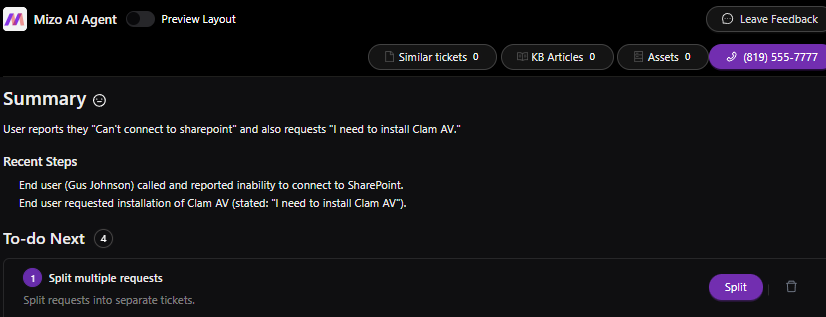
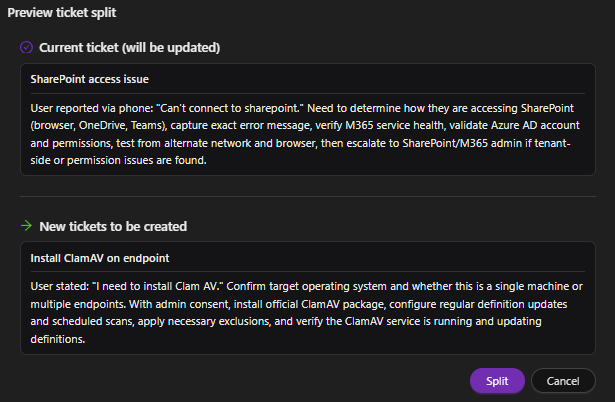
• Automated mode: Mizo automatically creates separate tickets for each identified issue. The original ticket is updated with references to the new child tickets, preserving full traceability.

In both modes, Mizo carries over relevant context—such as the client name, contact information, and any shared details—into each new ticket so technicians have full context without needing to reference the original.
How to Use It (Step-by-Step)
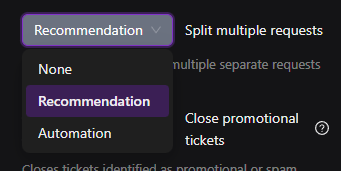
1. Enable Split Tickets: Navigate to your Mizo automation settings and enable the Split Tickets feature. Choose between Recommendation mode or Automated mode based on your team’s workflow preferences.
2. Review recommendations (Recommendation mode): When Mizo detects a multi-issue ticket, a split suggestion will appear in the ticket view. Review the proposed separation, confirm the split, or dismiss the suggestion.
3. Monitor automated splits (Automated mode): When a ticket is automatically split, Mizo creates new tickets and links them to the original. Review the split results in your ticket queue to confirm accuracy.
4. Track linked tickets: Use the ticket references to navigate between the original submission and the resulting split tickets. Each ticket maintains a link back to the parent for full audit trail.
Best Practices
• Start with Recommendation mode to build confidence in the detection accuracy before switching to fully automated splits.
• Review split results regularly during the first few weeks to calibrate detection and ensure tickets are being divided appropriately.
• Train your dispatch team on how split tickets are linked so they can quickly reference the original submission when needed.
• Use split tickets in combination with Mizo’s auto-categorization and routing to maximize automation downstream.
• Communicate with end-users that they may receive separate updates for each issue—this sets expectations and reduces confusion.
Common Use Cases
• Password reset + VPN issue: An end-user emails: “I need my password reset and I also can’t connect to VPN.” Mizo splits this into two tickets—one for identity/access and one for network connectivity—each routed to the appropriate queue.
• New hire onboarding: A ticket requests laptop setup, email provisioning, and software installation. Mizo separates each task so they can be assigned to different technicians or tracked independently.
• Printer issue + slow PC: A user reports that their printer isn’t working and their computer is running slowly. Mizo creates two tickets to ensure neither issue is deprioritized or forgotten.t.