
Split Tickets
Split Tickets is a Mizo feature that detects when an end-user submits a single ticket containing two or more distinct requests or issues. When this occurs, Mizo either recommends splitting the ticket into separate, focused tickets or automates the split entirely—depending on your configuration. Each resulting ticket carries the relevant context from the original submission, ensuring nothing is lost. This keeps your ticket queue clean, your SLAs accurate, and your technicians focused on one problem at a time.
Why It Matters for MSPs
• Faster resolution times – Technicians work on single, well-defined issues instead of juggling compound requests within one ticket.
• Accurate SLA tracking – Each issue gets its own ticket with its own priority and SLA clock, preventing one resolved item from masking an overdue one.
• Better routing and automation – Individual tickets can be categorized, prioritized, and assigned to the right technician or team automatically.
• Cleaner reporting – Ticket volume and resolution metrics reflect actual workload, giving service managers a true picture of team performance.
• Reduced back-and-forth – End-users no longer need to follow up on the “second thing” buried in a longer ticket description.
• Improved technician focus – Eliminates the cognitive load of tracking multiple unrelated tasks inside a single ticket.
How It Works
Checking whether a ticket bundles more than one distinct request is part of Mizo’s normal first read of every new ticket — this check always runs, on every ticket’s first pass, regardless of what your Split Tickets setting is. Only whether Mizo acts on what it finds depends on the setting. When it does find more than one request, Mizo keeps the most urgent one on the original ticket and creates a separate new ticket for each of the others — there’s no cap on how many tickets one bundled request can turn into. A ticket can only ever be split once, on its first pass; reprocessing it later never triggers a second split.
If multiple issues are detected, Mizo takes action based on your configuration:
• Recommendation mode: Mizo flags the ticket and presents a suggested split to the technician or dispatcher. A person — or the ticket chat assistant, on request — can edit the titles and descriptions of the tickets the split would create before approving or dismissing it.
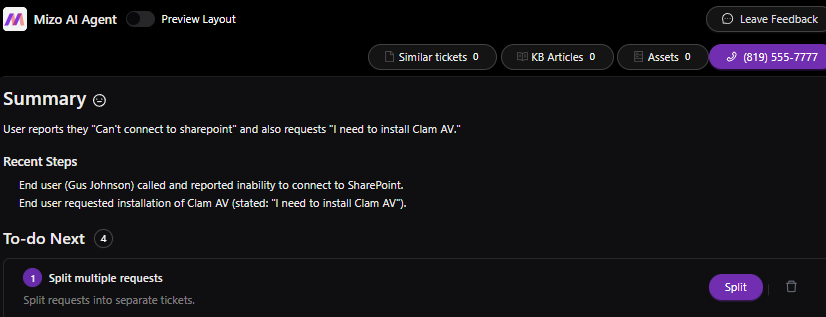
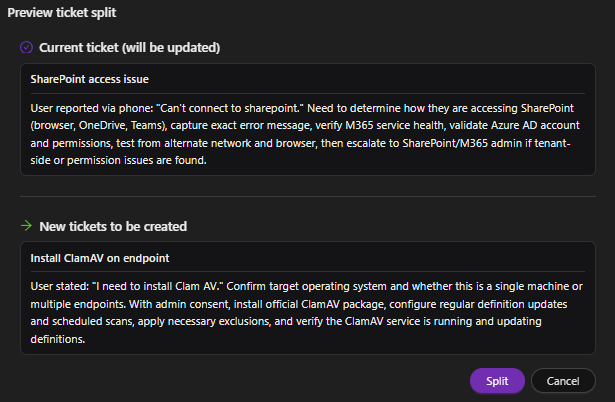
• Automated mode: Mizo automatically creates separate tickets for each identified issue. The original ticket is updated with references to the new child tickets, preserving full traceability.

In both modes, Mizo carries over relevant context—such as the client name, contact information, and any shared details—into each new ticket so technicians have full context without needing to reference the original.
Configurable Parameters
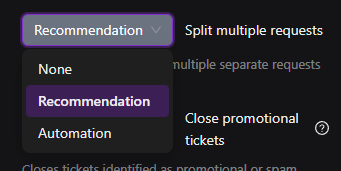
The setting is called “Split multiple requests,” on the Workflow page.
| Setting | What happens |
|---|---|
| Off | Mizo still checks every ticket for bundled requests, and you’re still billed for that check — but no task is created and nothing is written to the PSA. |
| Recommendation | Mizo creates a “Split multiple requests” task on the ticket. A person — or the ticket chat assistant, on request — reviews the proposed split, can edit the titles and descriptions of the tickets it would create, and approves or dismisses it. |
| Automation | Mizo splits the ticket automatically on its first pass, without waiting for anyone. The task still appears in the ticket’s history, already marked done, for visibility. |
If detection is too aggressive or too conservative for a given tenant, tune it with that tenant’s multiple-requests fine-tuning rule rather than turning the whole feature off.
How to Use It (Step-by-Step)
1. Enable Split Tickets: Navigate to your Mizo automation settings and enable the Split Tickets feature. Choose between Recommendation mode or Automated mode based on your team’s workflow preferences.
2. Review recommendations (Recommendation mode): When Mizo detects a multi-issue ticket, a split suggestion will appear in the ticket view. Review the proposed separation, confirm the split, or dismiss the suggestion.
3. Monitor automated splits (Automated mode): When a ticket is automatically split, Mizo creates new tickets and links them to the original. Review the split results in your ticket queue to confirm accuracy.
4. Track linked tickets: Use the ticket references to navigate between the original submission and the resulting split tickets. Each ticket maintains a link back to the parent for full audit trail.
Best Practices
• Start with Recommendation mode to build confidence in the detection accuracy before switching to fully automated splits.
• Tenants whose users tend to write long, itemized messages — frequent onboarding/offboarding batches, or “while you’re at it, also do X, Y, Z” emails — are the ones most likely to see over-splitting once Automated mode is switched on; keep an eye on those tenants especially.
• Review split results regularly during the first few weeks to calibrate detection and ensure tickets are being divided appropriately.
• Train your dispatch team on how split tickets are linked so they can quickly reference the original submission when needed.
• Use split tickets in combination with Mizo’s auto-categorization and routing to maximize automation downstream.
• Communicate with end-users that they may receive separate updates for each issue—this sets expectations and reduces confusion.
• Flag the billing impact to customers before turning on Automated mode: each ticket a split creates bills as its own separate ticket, so a ticket split into three bills three tickets, not one.
Common Use Cases
• Password reset + VPN issue: An end-user emails: “I need my password reset and I also can’t connect to VPN.” Mizo splits this into two tickets—one for identity/access and one for network connectivity—each routed to the appropriate queue.
• New hire onboarding: A ticket requests laptop setup, email provisioning, and software installation. Mizo separates each task so they can be assigned to different technicians or tracked independently.
• Printer issue + slow PC: A user reports that their printer isn’t working and their computer is running slowly. Mizo creates two tickets to ensure neither issue is deprioritized or forgotten.
Platform Differences
- ConnectWise — the new ticket is linked back to the original through ConnectWise’s own parent-ticket field, a structural link a technician can follow directly.
- HaloPSA — the new ticket is linked to the original using Halo’s related-tickets feature, visible and clickable in Halo just like on ConnectWise.
- Autotask — has no structural link between the original ticket and the new one. The only trace connecting them is a line of text Mizo adds to the new ticket’s description referencing the original ticket number; a technician has to search for it manually to jump between the two.
Possible Error Messages
There’s no user-facing error message specific to this feature — no on-screen text tells a technician “the split failed.”
- At Automation, if Mizo’s proposed split is somehow invalid (for example, nothing was actually flagged to move), the split is silently skipped and only logged internally — nothing appears on the ticket.
- At Recommendation, if a person or the chat assistant tries to approve a split plan that’s missing required pieces (no ticket kept, no ticket to move, or a moved item missing a title or description), a validation error is shown.
- If posting the internal notes that cross-reference the original and new tickets fails, the tickets are still created and linked — only the note is missing. This failure is logged, not shown to anyone.
- If queuing a newly created ticket (parent or child) for Mizo’s next automatic pass fails, the split itself has already completed — only that one ticket’s next automatic pass is delayed. This is also logged only.
Dependencies and Prerequisites
- Split multiple requests must be set to Recommendation or Automation for a detected split to ever be surfaced or acted on. At Off, detection still runs — and is still billed — but the result is discarded.
- Depends on Mizo’s core triage read of the ticket running at all, which it always does on a ticket’s first pass.
- The optional multiple-requests fine-tuning rule, if your tenant has customized it.
- Your connected PSA must support creating a linked ticket and posting an internal note — true for all three supported PSAs today.
Good to Know
- New child tickets are written in whatever language the original message was detected in — unlike most other content Mizo writes, they are not translated into the customer’s PSA display language. For a non-English-speaking customer, this is worth flagging up front.
- In rare cases, a newly created child ticket can itself be split again if its own content still reads as bundling multiple requests — child tickets go through their own first pass with Mizo just like any other new ticket. In practice this is uncommon, since a child ticket is usually already a single, separated request by the time it’s created.
Frequently Asked Questions
Will this split my ticket over and over? No. A ticket can only be split once, the first time Mizo processes it — reprocessing it later never triggers another split.
Does splitting cost us extra? Yes, and it’s worth flagging to customers up front — each ticket a split creates bills as its own ticket.
Can we turn this off for one client? The setting applies at the tenant level, not per client — there’s no separate on/off switch for a single company within a shared tenant.
Roles and Permissions
Changing the Split Tickets setting requires full access to the Workflow page; read-only access can view the current setting. Approving or running a proposed split on a specific ticket is available to anyone who can already view and act on that ticket — there’s no separate permission gate for that action.