
Update Ticket Categories
When tickets are created from emails or unstructured requests, categories are often missing or inconsistent. This can make it harder to organize, route, and report on tickets accurately.
With Update Ticket Categories, Mizo automatically sets ticket categories, subcategories, and sub-subcategories based on the ticket content.
What it does
- Analyzes the ticket content and context
- Assigns the appropriate category, subcategory, and sub-subcategory
- Ensures consistent classification across all tickets
Why it matters
- Tickets are organized and easier to manage
- Faster routing and assignment to the right team
- Improved reporting and analytics
- Reduced manual classification for support agents
Typical examples
- Before: No category assigned
- After: Category = Software / Subcategory = Email / Sub-subcategory = Sync Issue
How to Activate & Fine-Tune Ticket Categories
Activation
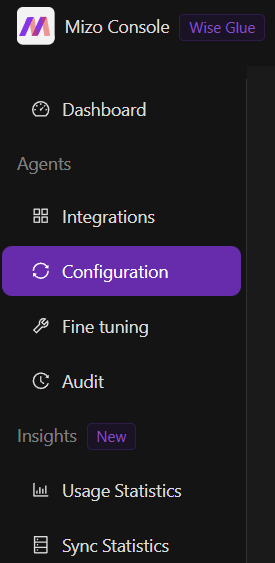
Go to the Configuration section in the Mizo console
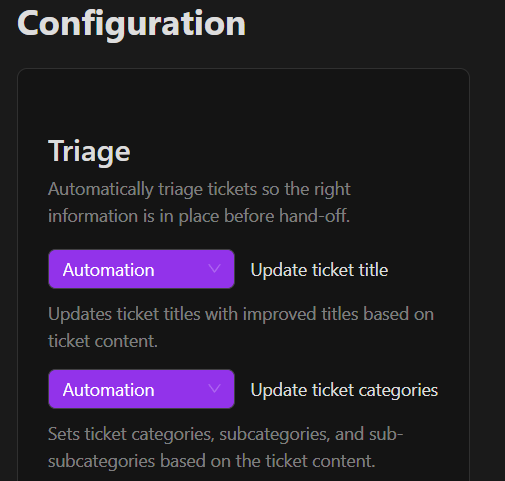
Enable Update Ticket Categories and choose how it should behave:
- Automation: Mizo automatically sets categories for every analyzed ticket
- Recommendation: Mizo suggests categories, and your team validates them before applying
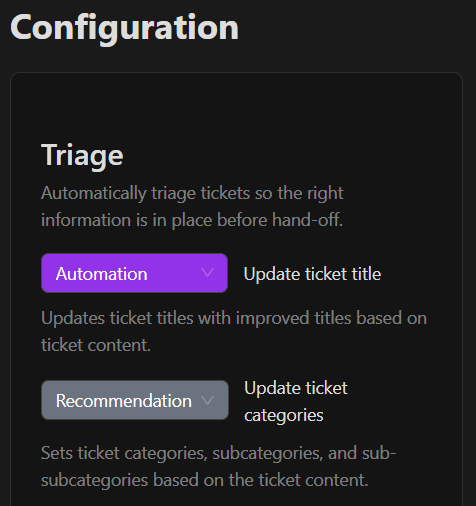
Here’s how it will appear in the pod:
This will be saved automatically.
Once activated, Mizo will automatically categorize all new tickets.
Fine-Tuning the Feature
This feature is fune tunes automaticcaly but but you can also add some specific rules within the fine tuning page
You can:
- Choose whether some tickets should not be automatically categorized
- Preciser si un ticket type manque de clareté
To do this, go to the Fine-Tuning tab. Here are some good practices: