
Update Ticket Title
When emails are converted into tickets, the subject line is often unclear, too long, or not meaningful for support teams (e.g. “Re: FW: URGENT”).
With Update Ticket Title, Mizo automatically rewrites ticket titles to make them clear, structured, and actionable.
What it does
- Analyzes the email content and context
- Generates a concise and relevant ticket title
- Removes unnecessary prefixes (FW, RE), long threads, and email noise
- Runs on every new ticket’s first pass through Mizo, regardless of the Update Title setting — the setting only controls whether the result is ever shown or written to the PSA
Why it matters
- Tickets are easier to understand at a glance
- Faster triage and assignment
- Better visibility in dashboards and reports
- Improved communication between support agents and clients
Typical examples
- Before: “RE: FW: Issue”
- After: “Outlook not syncing on user workstation”
Things to Know Before You Turn This On
- Mizo generates a title suggestion on every new ticket even when Update Title is Off. The setting only decides whether that generated title is ever shown or written back to the PSA — the analysis itself always runs, and you’re billed for that generation either way, even on a tenant with the setting Off that will never see the result.
- A title is only generated once, on a ticket’s first pass through triage. If a ticket is reprocessed later, the title is not regenerated by default — only the summary is refreshed. A new title is generated again only if someone forces a reprocess.
- Two situations update a ticket’s title regardless of the setting: a technician manually confirming Mizo’s suggested title from the embedded PSA panel, and a ticket being split into multiple tickets — the original ticket’s title is rewritten to reflect what remains on it after the split-off items are removed. Both are expected behavior, not a bug, even on a tenant with Update Title set to Off.
- Because the title is generated once, at first triage, a title-rule change made through fine-tuning won’t retroactively fix titles on tickets already processed — only new tickets pick up the change, unless someone forces a reprocess.
Configurable Parameters
Update title (Workflow page):
| Setting | What happens |
|---|---|
| Off | Mizo still generates a title suggestion for every ticket, and you’re still billed for it, but nothing is ever shown or written to the PSA. |
| Recommendation | An “Update ticket title” task is created for a technician to review and apply; applying it writes the new title to the PSA. |
| Automation | Mizo writes the new title to the PSA automatically during first-pass processing. The task still appears in the ticket’s history, already marked done, purely for visibility. |
Keep ticket title in original language (Workflow page):
| Setting | What happens |
|---|---|
| Off / Recommendation | No effect. |
| Automation | Only matters for a customer whose PSA displays in a non-English language. If the ticket originally came in written in English, the English title is kept as-is in the translated copy of the ticket instead of being translated. For a ticket in any other original language, or a PSA displaying in English, this setting changes nothing. |
How to Activate & Fine-Tune Ticket Title Updates
Activation
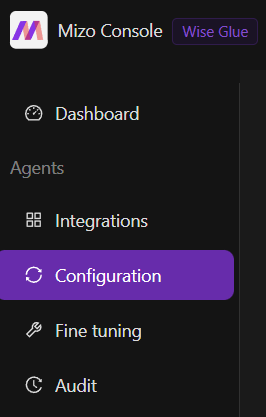
- Go to the Configuration section in the Mizo console
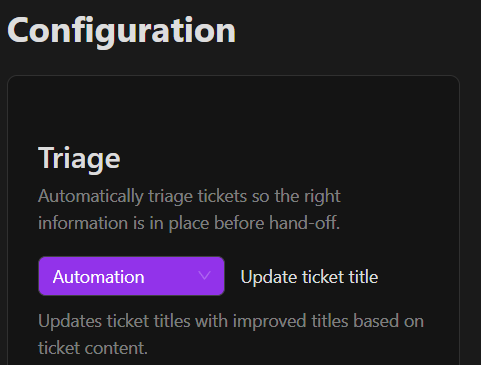
Enable Update Ticket Title and choose how it should behave:
- Automation: Mizo automatically updates the ticket title for every analyzed ticket
- Recommendation: Mizo suggests a new title, and your team validates it before applying
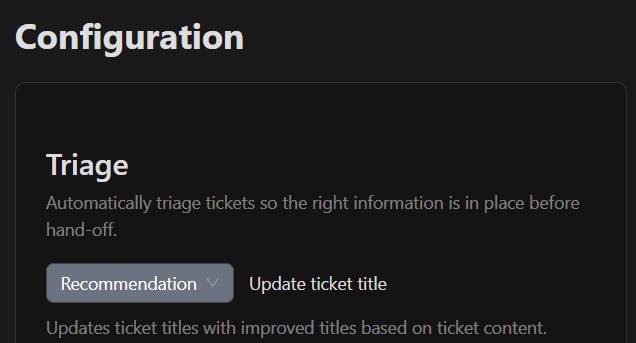
It will be saved automatically.
Once activated, Mizo will generate clear and relevant ticket titles for all new tickets.
There’s a second setting, “Keep ticket title in original language,” that only matters for a customer whose PSA displays in a language other than English. If the ticket originally came in written in English, the English title is kept as-is instead of being translated. For a ticket in any other original language, or a PSA displaying in English, this setting changes nothing — it’s a narrower setting than its name suggests, worth flagging during onboarding.
Fine-Tuning the Feature
This feature can be fine-tuned over time to better match your support workflow and internal standards.
You can:
- Align titles with your internal naming conventions (e.g. End User Name – Summary)
- Add an explicit “do not rename” rule for tickets that shouldn’t be renamed at all
To do this, go to the Fine-Tuning tab within Mizo Console.
Concrete Usage Examples
- Vague subject line. A customer emails in with the subject “asdf pls help,” describing that Outlook won’t sync. At Recommendation, Mizo’s first pass generates a suggested title like “Outlook not syncing emails,” along with a short explanation of why. An “Update ticket title” task appears in the ticket chat showing the old and new title side by side. A technician applies it, the PSA ticket’s title updates, and the action is logged.
- Ticket split. A ticket that bundles three unrelated requests gets split into separate tickets. The original ticket’s title is rewritten to describe only what’s left on it after the split-off items are removed — this happens even if the tenant has Update Title set to Off, because a split is one of the two cases that bypasses the setting.
Possible Error Messages
There’s no user-facing error message for this feature. Writing the new title back to the PSA can fail, and when it does, it fails silently — nothing appears on the ticket, and there’s no signal in the product that it failed.
A failure to generate the suggestion in the first place (for example, an underlying AI service error) is not silent — it surfaces as a general triage-processing failure, the same way any other required triage step failing would. There’s nothing title-specific about that failure mode.
Dependencies and Prerequisites
- “Update title” must be set to Recommendation or Automation for a suggested title to ever be shown or written anywhere. At Off, Mizo still generates the suggestion — and you’re still billed for it — but the result is thrown away.
- A tenant can set title rules through fine-tuning, including an explicit “do not rename” instruction, which override Mizo’s default renaming behavior.
- “Keep ticket title in original language” only does anything for a customer whose PSA is configured to display in a language other than English, and only when the ticket itself originally came in written in English.
Best Practices
- Start new tenants on Recommendation so a CSM or onboarding specialist can compare Mizo’s suggested titles — and how well tenant-specific title rules are applying — against real tickets before trusting the automatic write.
- Move to Automation once suggestions are consistently good.
- If a customer says the automatic title update “isn’t working,” check the Update Title setting first — at Off, Mizo is still generating a suggestion behind the scenes, it’s just never written anywhere.
Platform Differences
ConnectWise silently shortens any generated title longer than 100 characters, trimming at the last whole word, because ConnectWise rejects longer titles outright. HaloPSA and Autotask write the full generated title with no length limit — so the same AI-generated title can end up shorter on ConnectWise than on the other two platforms.
Frequently Asked Questions
“Why is our ticket title cut off?” This happens on ConnectWise specifically — titles over 100 characters are trimmed at the last whole word. HaloPSA and Autotask have no length limit.
“We turned this off — why is Mizo still doing it?” Two situations apply a new title regardless of the setting: a technician manually confirming the suggested title from the embedded PSA panel, and a ticket’s title being rewritten because it was split. Neither checks the Update Title setting.
“Why didn’t we get a title suggestion on this ticket?” If Mizo’s suggested title turns out to be identical to the ticket’s current title, no task is created at all — there’s nothing to apply.
Roles and Permissions
Configuring either setting requires the Workflow page — viewing it needs read-only access, saving a change needs full access. Applying a suggested title at the Recommendation level is available to any technician with access to the embedded PSA panel where the task appears.